Using Applitools With Teamcity
Teamcity Plugin
This plugin enables you to get Applitools' tests results directly inside your TeamCity's results page.
Installation
Source Repository: https://github.com/applitools/eyes.teamcity/blob/master/README.md
-
Download the latest version of the Applitools Eyes Plugin zip file.
-
Copy applitools-eyes.zip to your TeamCity's plugins folder (e.g,
~/.BuildServer/Plugins). -
Restart TeamCity.
-
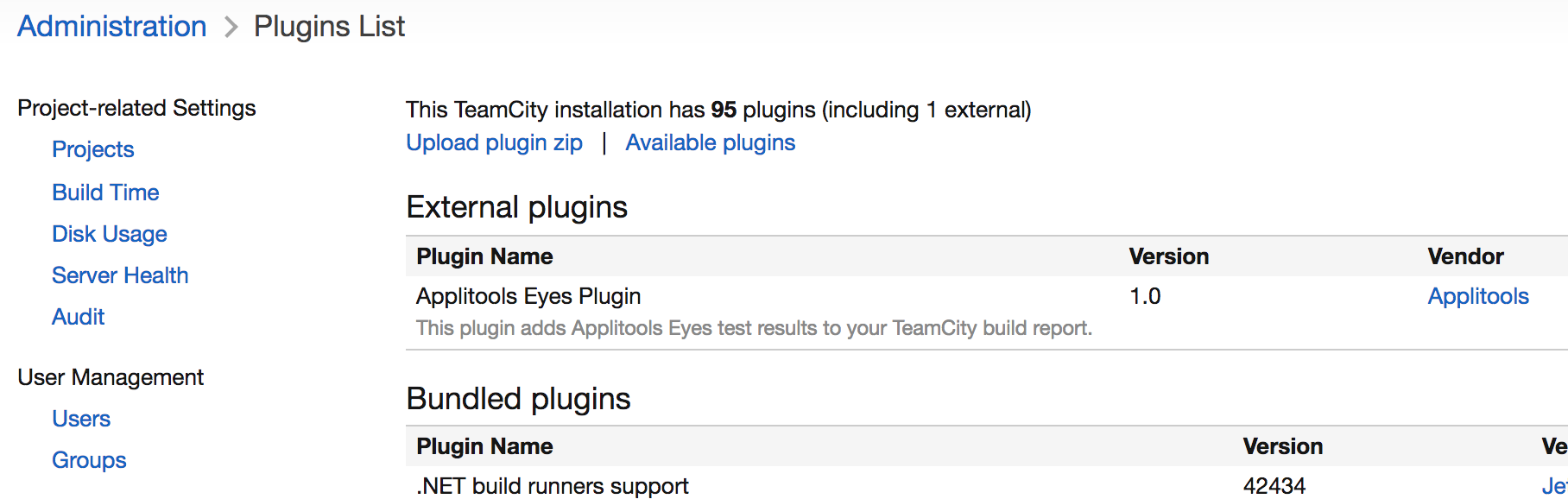
From your TeamCity's Projects page go to: Administration -> Plugins List. You Should see the Applitools Eyes plugin under External plugins:
Usage
Enabling Applitools Support
- Go to your project's page and click on Edit Project Settings and click on the build configuration for which you want to add Applitools.
- Click on Build Features and add Applitools Support.
- If you have Applitools' private cloud or on-premise server, you can set the server URL in the Applitools URL setting.
Updating Your Tests Code
The Applitools Plugin causes TeamCity to export the batch ID to the APPLITOOLS_BATCH_ID environment variable. You need to update your tests code to use this ID in order for your tests to appear in the Applitools window in the build results.
In addition, TeamCity exports a suggested batch name to the APPLITOOLS_BATCH_NAME environment variable. Using this batch name is optional (the batch name is used for display purposes only).
Following is an example:
BatchInfo batchInfo = new BatchInfo(System.getenv("APPLITOOLS_BATCH_NAME"));
// If the test runs via TeamCity, set the batch ID accordingly.
String batchId = System.getenv("APPLITOOLS_BATCH_ID");
if (batchId != null) {
   batchInfo.setId(batchId);
}
eyes.setBatch(batchInfo);
Tests which will contain the above code, will show the Applitools results window inside TeamCity's tests results page (as can be seen in the screenshot at the top of this document).
Enabling Applitools logs in TeamCity
If you need Applitools SDK logs, configure your build to set the following environment variables and publish the log folder as a TeamCity artifact:
export APPLITOOLS_SHOW_LOGS=true
export APPLITOOLS_LOG_DIR=logs
Then configure TeamCity to publish the logs/ folder as a build artifact. For example, add an artifact path such as:
logs/** => logs.zip
If your TeamCity build runs inside Docker, the log files are written inside the container and can be lost when the container stops. Mount the container log directory to the agent workspace so the files are preserved.
Example Docker command:
docker run \
  -e APPLITOOLS_SHOW_LOGS=true \
  -e APPLITOOLS_LOG_DIR=/usr/src/app/logs \
  -v ${WORKSPACE}/applitools-logs:/usr/src/app/logs \
  your-image-name
Adjust ${WORKSPACE} to your TeamCity workspace path.