Using Atlassian Bamboo CI with Eyes
This article explains how to install and use the Applitools Eyes plug-in for the Atlassian Bamboo CI system.
The Eyes plug-in provides the following functionality:
- A Bamboo task can be used to run an Eyes visual test.
- All visual tasks that run in a Bamboo stage run as a single Eyes batch.
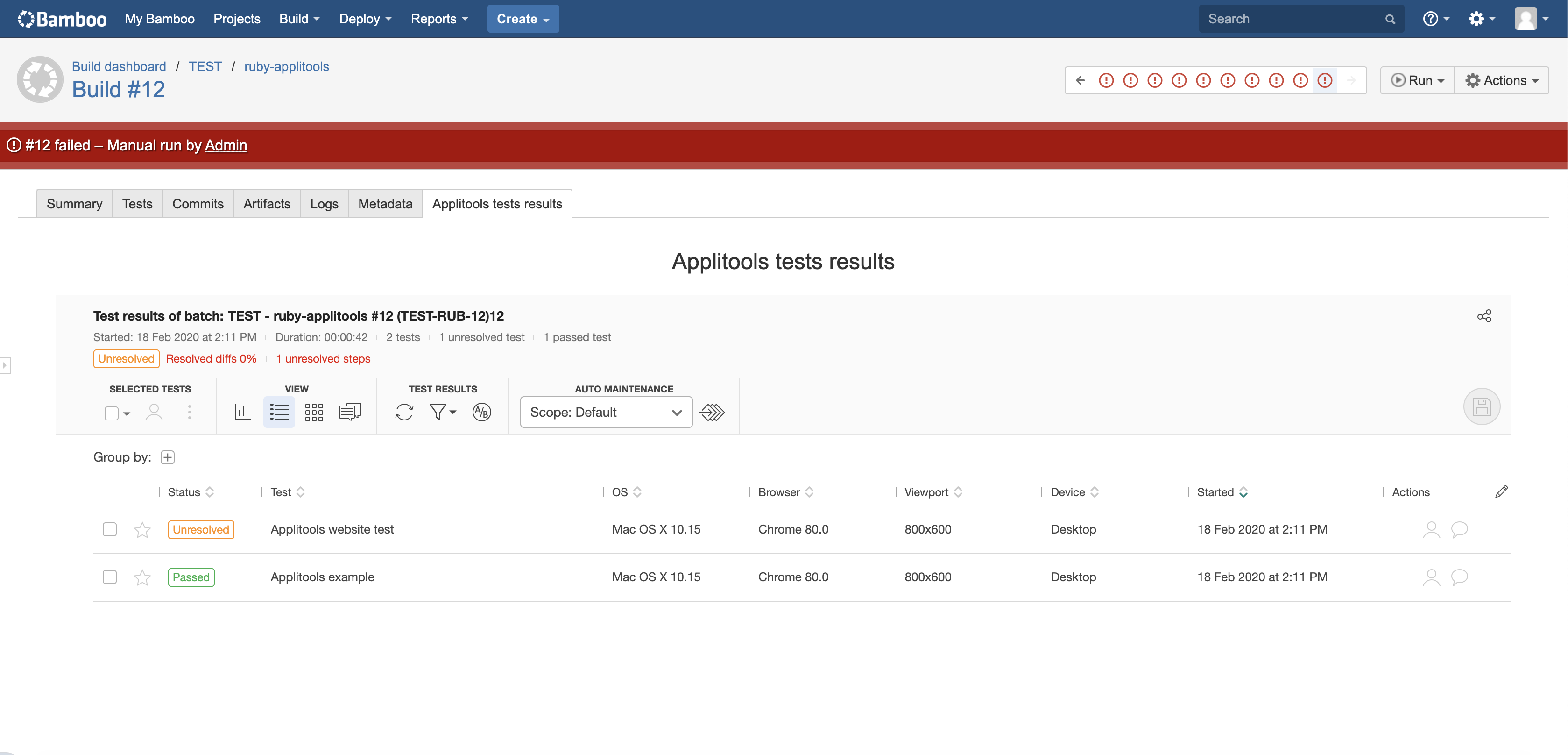
- Test results can be directly viewed directly from the Applitools tab in the Build results page.
This article assumes that you already have Bamboo installed on your system and that you know how to use it. Note that depending on your version of Bamboo, some of the necessary steps or screenshots may be different from those described here.
Installing the Applitools plug-in
Install the Applitools Eyes plugin from the Atlassian Marketplace for Bamboo. Search for the plug-in using the term "Applitools".
Setting up a Visual test
To integrate Bamboo with an Eyes test there are two steps:
- Configure an Applitools plug-in Bamboo task.
- Ensure that the Applitools Eyes test code does call Eyes configurations that clash with the setup done by the Applitools plug-in.
Configuring the Applitools plugin
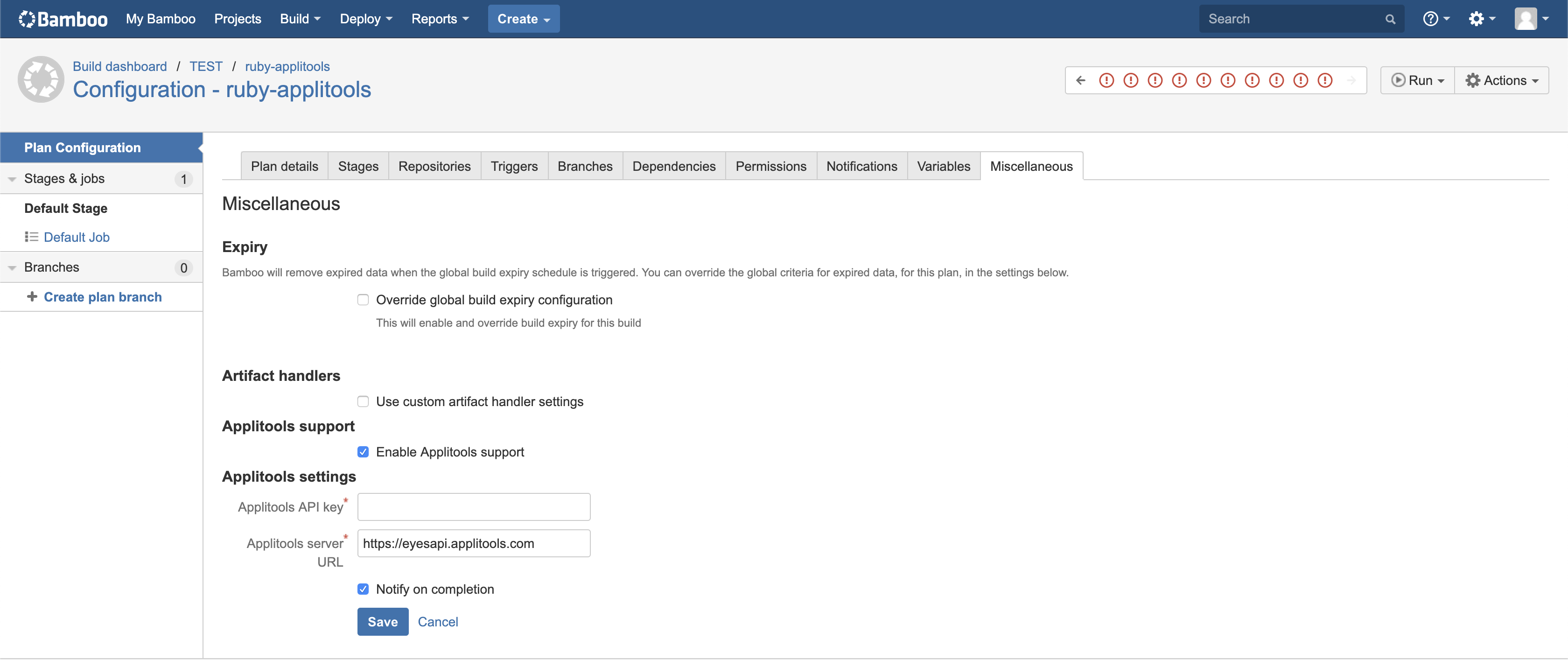
Open the Plan configuration, Miscellaneous tab:
-
Select the "Enable Applitools support" checkbox.
-
Enter your API key. To obtain your API key see the article How to retrieve your API key.
-
If you use an on-premise server or private cloud, put its URL in the Applitools server URL field (for example https://eyesapi.yourcompany.com). If you use the Applitools public cloud, then leave the field with its default value.
-
If you want Eyes to send batch completion notifications then select the Notify on completion checkbox. You configure when, to whom and how the notification are sent using the Eyes Test Manager See Batch completion notifications for details.
-
Click Save.
Set up test code
The Applitools Bamboo plugin is responsible for setting up the test for the correct Eyes URL, API Key, and Batch information. Therefore you should ensure that your code does not call any of the following methods or their equivalents:
class$eyes$setapikeyclass$configuration$setapikeyclass$eyes$setserverurlclass$configuration$setserverurlclass$eyes$setbatchclass$configuration$setbatch
Enabling Applitools logs in Bamboo
To collect Applitools SDK logs in Bamboo, set the environment variables and archive the log folder after the test run:
APPLITOOLS_SHOW_LOGS=true
APPLITOOLS_LOG_DIR=logs
Then configure a Bamboo artifact definition for the logs/ folder so it is saved after the build.
If your Bamboo build runs inside Docker, setting APPLITOOLS_SHOW_LOGS and APPLITOOLS_LOG_DIR is not enough. The logs are written inside the container and can be lost when the container exits unless the log directory is mounted to the workspace.
Example Docker command:
docker run \
  -e APPLITOOLS_SHOW_LOGS=true \
  -e APPLITOOLS_LOG_DIR=/usr/src/app/logs \
  -v ${WORKSPACE}/applitools-logs:/usr/src/app/logs \
  your-image-name
Adjust ${WORKSPACE} to your Bamboo agent workspace.
Viewing Test results
After your test has run, you can see the results on the Applitools test results tab on the Bamboo Build results page.