- Concept
- Beginner
- Any framework
- No SDK required
Why Visual AI Works
Part 1 of 3 in Visual AI Foundations · For QA engineers, SDETs, developers, and team leads · Reviewed Nov 5, 2026
Functional tests confirm your app behaves as expected, but they can't tell you whether the page looks right. Pixel diffs try to fill that gap but drown you in noise or, once loosened, miss real bugs. This page explains how Visual AI compares screenshots the way a person would, and how match levels, regions and grouping keep false positives low without giving up coverage.
Anyone deciding how visual testing fits into their test strategy, or trying to understand why Applitools Eyes behaves differently from pixel-based tools. It's a good starting point if you're new to Applitools or evaluating it against tools you already use.
- Familiarity with automated UI or functional testing (for example, Playwright, Selenium or Cypress)
- No Applitools setup required. This page covers concepts only.
This document outlines the core tenets of why Visual AI works so effectively as part of your visual testing toolkit. Visual AI testing reduces the code to be maintained as it removes brittle locators, removes manual testing barriers, and covers the aspect your functional tests do not: issues that would be caught by a human, but not functional assertions.
The Gap in Your Current Tests
A common question is, "I already have functional tests, so why would I need visual tests?" Functional tests confirm that code behaves as expected. They don't check how the page renders, so a test can pass while the page has visual defects such as:
- Overlapping text or buttons
- A button the same color as surrounding text
- Tap targets being too small
- Elements running off the page
The image below demonstrates how functional tests pass but visual tests fail.

Comparing Functional Assertions, Pixel Diffs, and Visual AI
In UI testing, there are three primary questions, each answered by a different piece of the puzzle.
- Functional assertions: "Did the app do what was expected?"
- Pixel diffs: "Did any pixel change?"
- Visual AI: "Would a person see a difference?"
Visual AI is the closest match to what your users actually see. Applitools Eyes uses Visual AI as the main comparison and keeps DOM data for diagnosis.
Functional assertions alone gives false results in two ways: a refactor can change selectors or markup and break the test while the page renders identically (a false positive), and every assertion can pass while the page renders incorrectly (a false negative).
Pixel diffs fail on noise, then on tuning. Browser engine updates shift colors invisibly; a 1px render offset or a blinking cursor can break a test and block a release. Raising the threshold trades false positives for false negatives. Even pixel tools concede this: some pixel-diff tools ship a default color threshold and ignore anti-aliased pixels by default.
Visual AI reads the page as elements. Applitools Eyes treats text as text and shapes as shapes, not as a collection of pixels. Rendering noise that no human would notice does not register as a change.
Visual AI provides a clear reduction in brittle locator code that has to be maintained while reducing the manual effort required for visual testing when using even a pixel diff tool.
| DOM / functional assertions | Pixel diff | Visual AI (Applitools Eyes) | |
|---|---|---|---|
| What it compares | Element presence, text, attributes, state | Each pixel at the same coordinates, often with a color-distance threshold | Screenshot analyzed as text, shapes and layout, the way a human eye would |
| Catches | Logic and data bugs on elements you thought to assert | Any rendered change, visible or not | Visible changes: text, font, color, position, missing or extra elements |
| Misses | Anything not asserted: overlap, hidden or off-screen elements, wrong colors, broken layout | Nothing. It flags every change, including noise, until thresholds are loosened. | Sub-perceptual rendering noise (by design) |
| Typical false-positive source | Refactors that change selectors or markup but render the same | Anti-aliasing, font smoothing, GPU or browser updates, 1px shifts, cursors, animations | Truly dynamic content, until handled with match levels or regions |
| Typical false-negative source | Markup is identical but renders differently (CSS, iframes, browser quirks) | Thresholds loosened to stop the noise, which hides real breaks | Region or match level set too loose |
| Maintenance cost | One assertion per thing you care about; breaks on DOM refactors | Masks and thresholds per page; constant re-tuning | One checkpoint per page or component; grouped approvals |
Why False Positives Drop
False positives drop for four separate reasons. Visual AI ignores noise by default, and match levels tune what "different" means. Regions handle truly dynamic areas. Grouping shrinks whatever review is left.
Perception, Not Pixels
Visual AI ignores noise by default. The goal is to mimic how a human's eyes would perceive differences in a rendered page. Tools that use pixel matching catch every change at the pixel level: even sub-perceptual changes that might occur in a page will register as a difference. Visual AI recognizes these as noise and ignores them, because no user would notice them.
Match Levels Tune the Question
| Match level | Checks | Ignores | Best for |
|---|---|---|---|
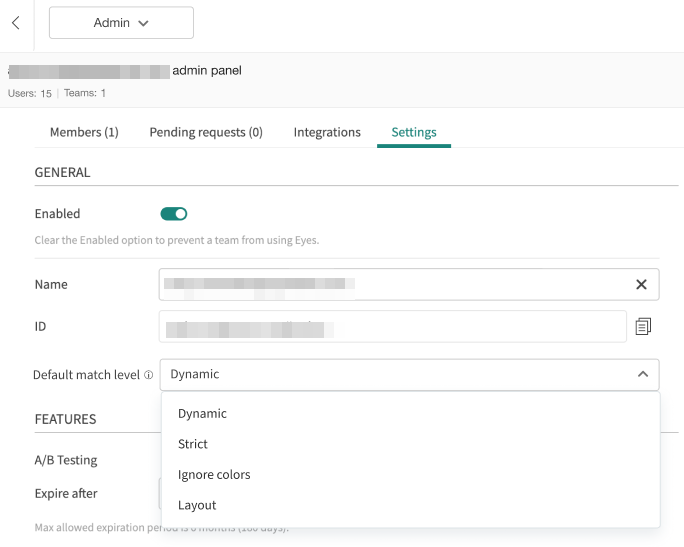
| Dynamic (default) | Everything Strict match level checks, plus whether text patterns (dates, emails, URLs) are valid in format | Values inside recognized patterns; nearby shifts | Web text that changes but keeps its format |
| Strict | Text, font, color, graphics, position | Sub-perceptual rendering differences | Checkpoints that don't contain dynamic data, as identified by the Dynamic match level above |
| Layout | Elements and their relative positions; appeared, disappeared, moved | Actual text, images, color, style | Content that changes freely while the structure should remain consistent |
| Ignore Colors | Same as Strict | Color only | Themed or multi-color components |
| Exact | Every pixel | Nothing | Recommended for demo purposes only |
| None | Nothing | Everything | Paired with region-level match levels |
Applitools Eyes' default and recommended match level is called "Dynamic," which verifies the page content matches the baseline image closely enough that the human eye would not see any difference, while ignoring the values inside recognized text patterns — such as dates, dollar amounts, and even custom regular expressions — and the surrounding minor pixel shifts that can be caused by dynamic elements. It still flags text, font, color, graphics, and position changes, but ignores platform-dependent pixel rendering. This removes the biggest pixel-diff noise sources without loosening coverage.
A baseline image is the image the most recently taken screenshot, called the checkpoint, is compared against. The baseline image is the "known good" comparison point. See Applitools Baselines for more information.
Applitools' recommended pattern is using Dynamic globally, with Layout or Ignore Colors regions on the specific components that need them. See the "choosing a match level" document for details and examples.
Regions Handle What Should Change
- Match-level regions apply a different level to one area. Element-based regions are preferred because they follow the element if it moves.
- Floating regions let an element move within set bounds and fail only if it leaves them.
- Ignore regions skip comparison entirely and should only be used as a last resort, since they create blind spots.
Grouping Shrinks Review
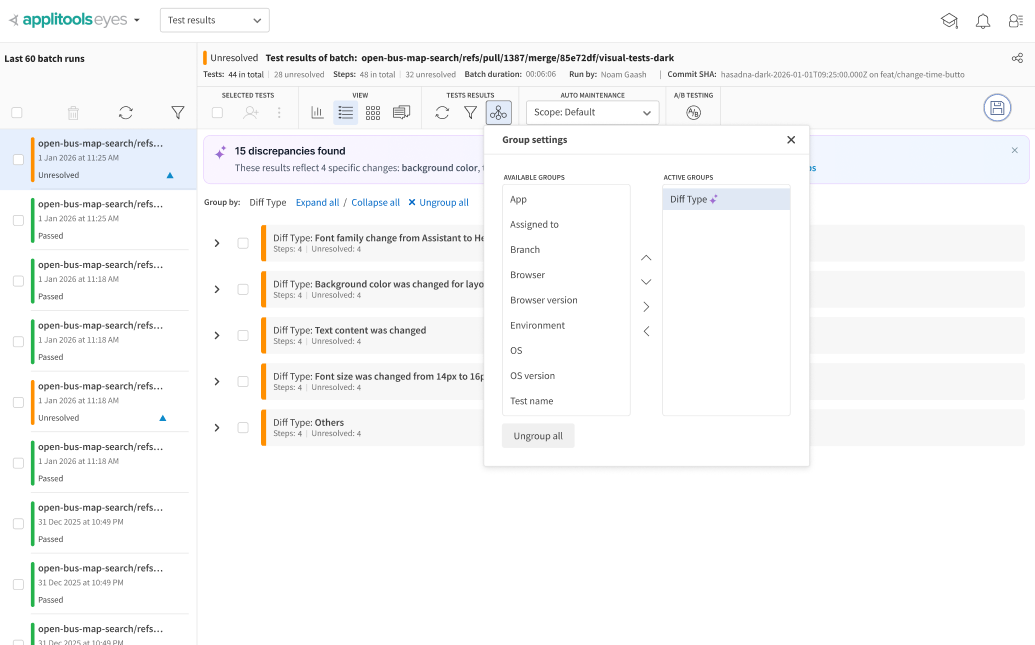
Batch related tests together, then use the dashboard's grouping and filtering functionality to see which tests have differences and accept or reject changes as groups in a couple clicks.
Key Takeaways
- Functional tests catch logic problems, not visual ones.
- Visual AI mimics how the human eye sees differences and bugs.
- Pixel matching is either too noisy or, once loosened, misses real bugs.
- Match levels, regions, and batch grouping help you zero in on the changes that matter.
Up next: Closing the Visual Gap