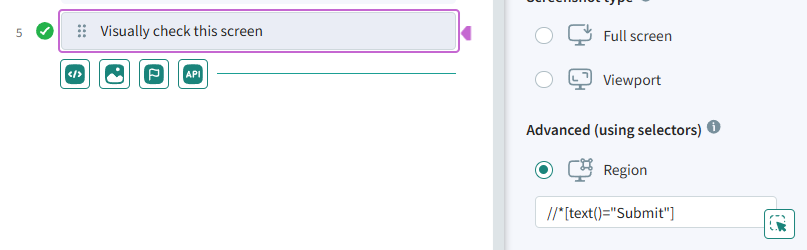
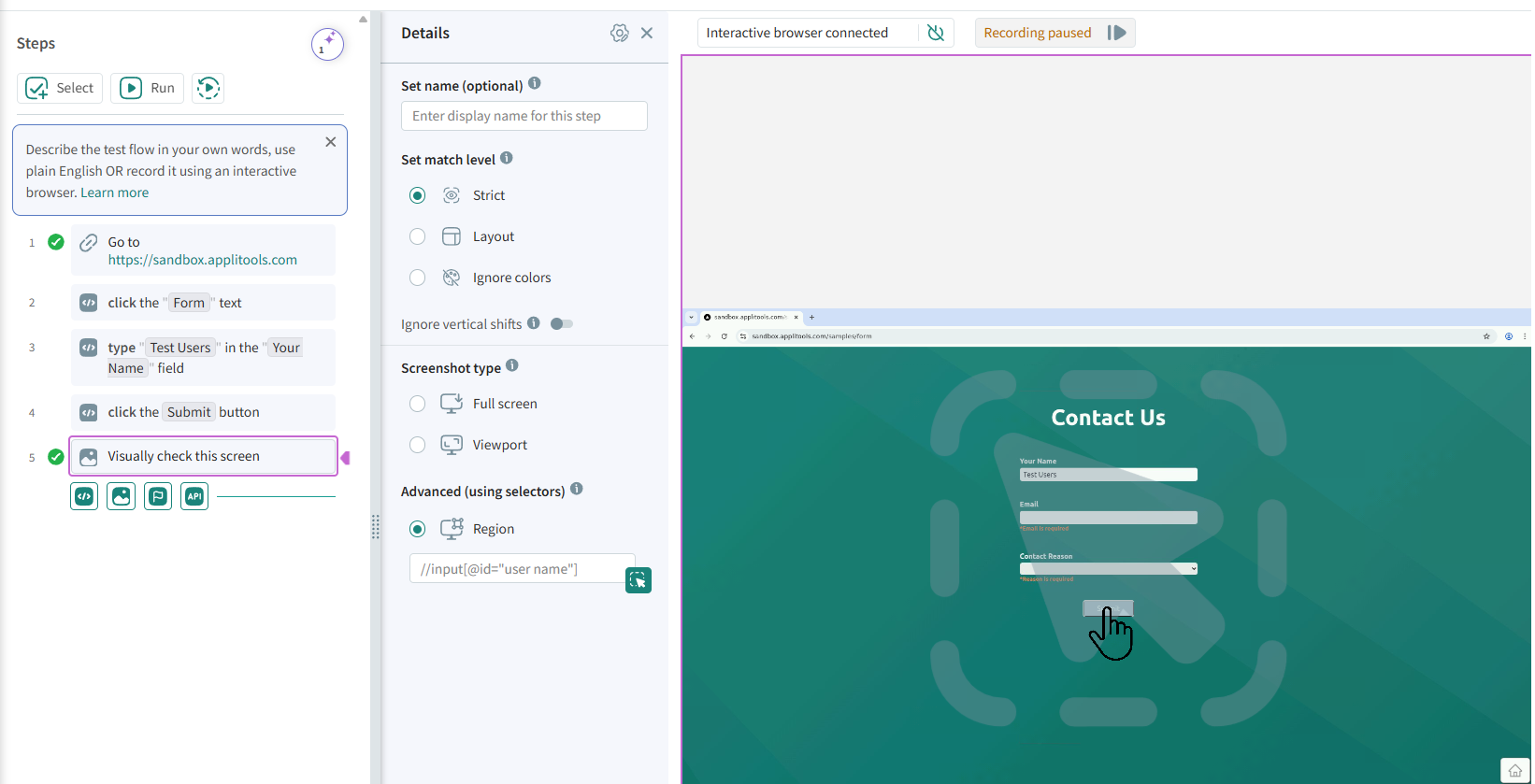
Screenshot Type
The screenshot type determines what will be included in the screenshot. Autonomous includes the following screenshot types:
- Full Screen – The image includes the complete screen, scrolling to the bottom of the screen.
- Viewpoint – The image includes only content displayed on the screen, without scrolling.
- Region – An element or region of the screen as determined by the CSS or XPath.
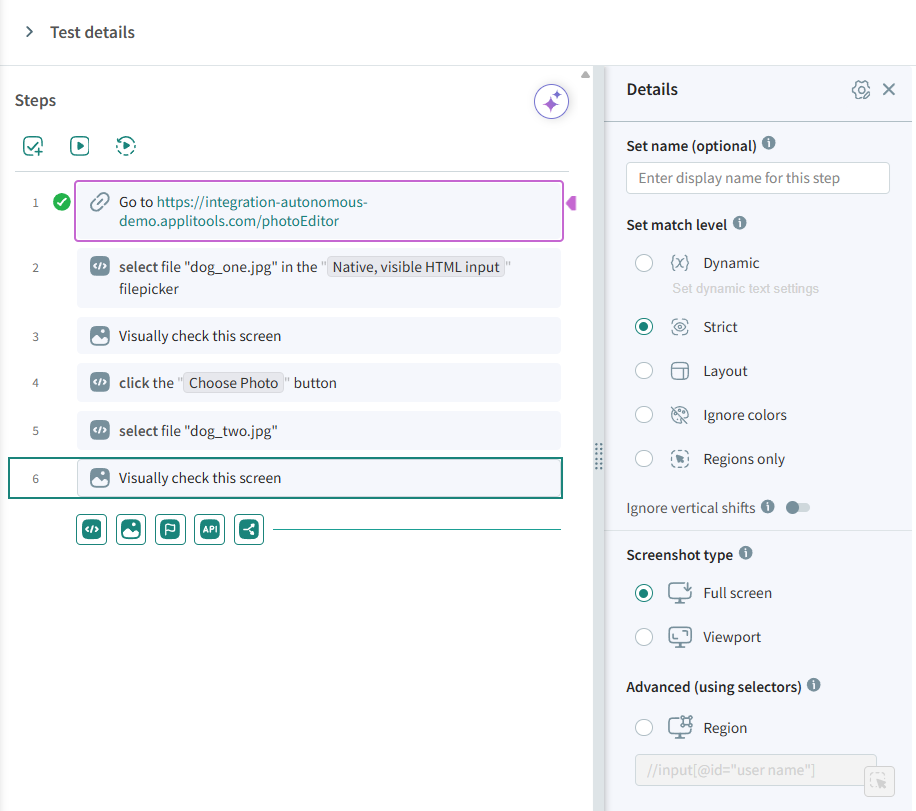
How To Set the Screenshot Type in a Custom Flow Test
Click on a Visually check this screen step and select the screenshot type.
How to Select an Element for Visual Testing
-
Add a test step "Visually check this screen".
-
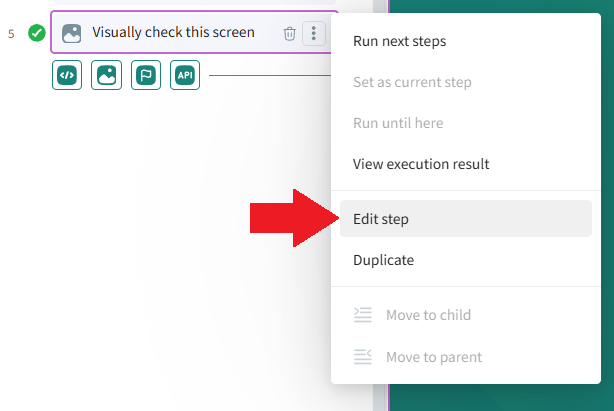
Click the vertical ellipsis to open the test step options menu.

-
Click "Edit step".
-
Under "Advanced (using selectors)", select "Region".
-
Click the
 icon.
icon.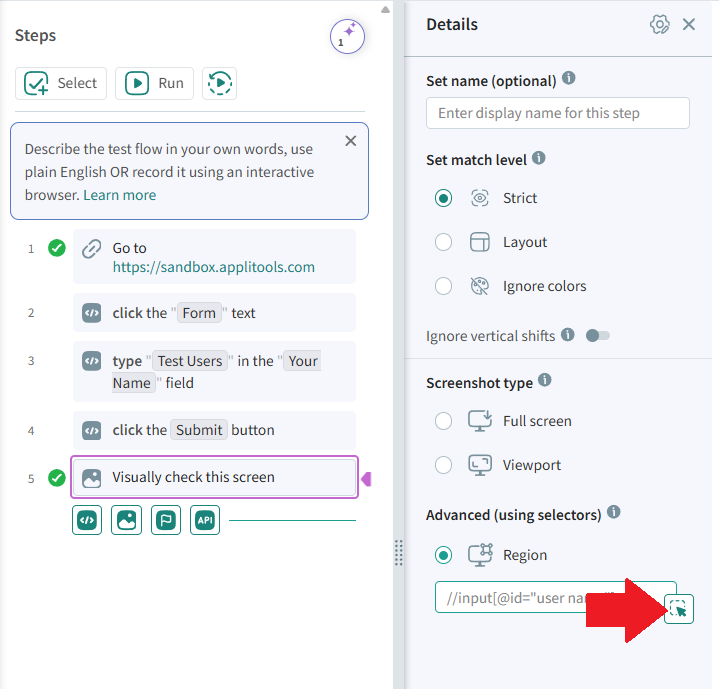
-
Click the correct element to visually test in the interactive browser.
-
The region field will be automatically populated with the selector corresponding to the chosen element.