Manage Files
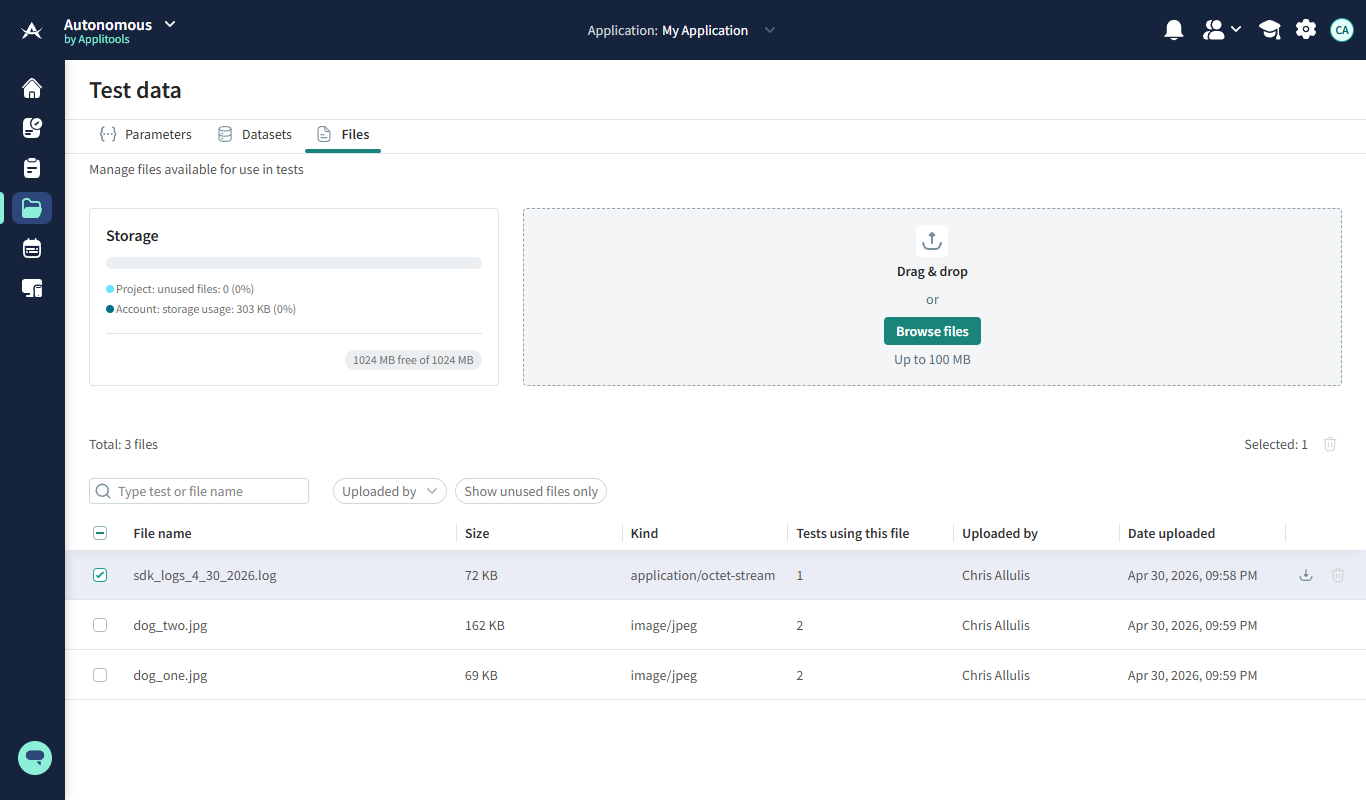
The File Management Dashboard lets you manage files that can be used in file upload workflows.
How to Open the File Management Dashboard
- In the left sidebar, click Test data (the folder icon).
- Click the Files tab under Test data.
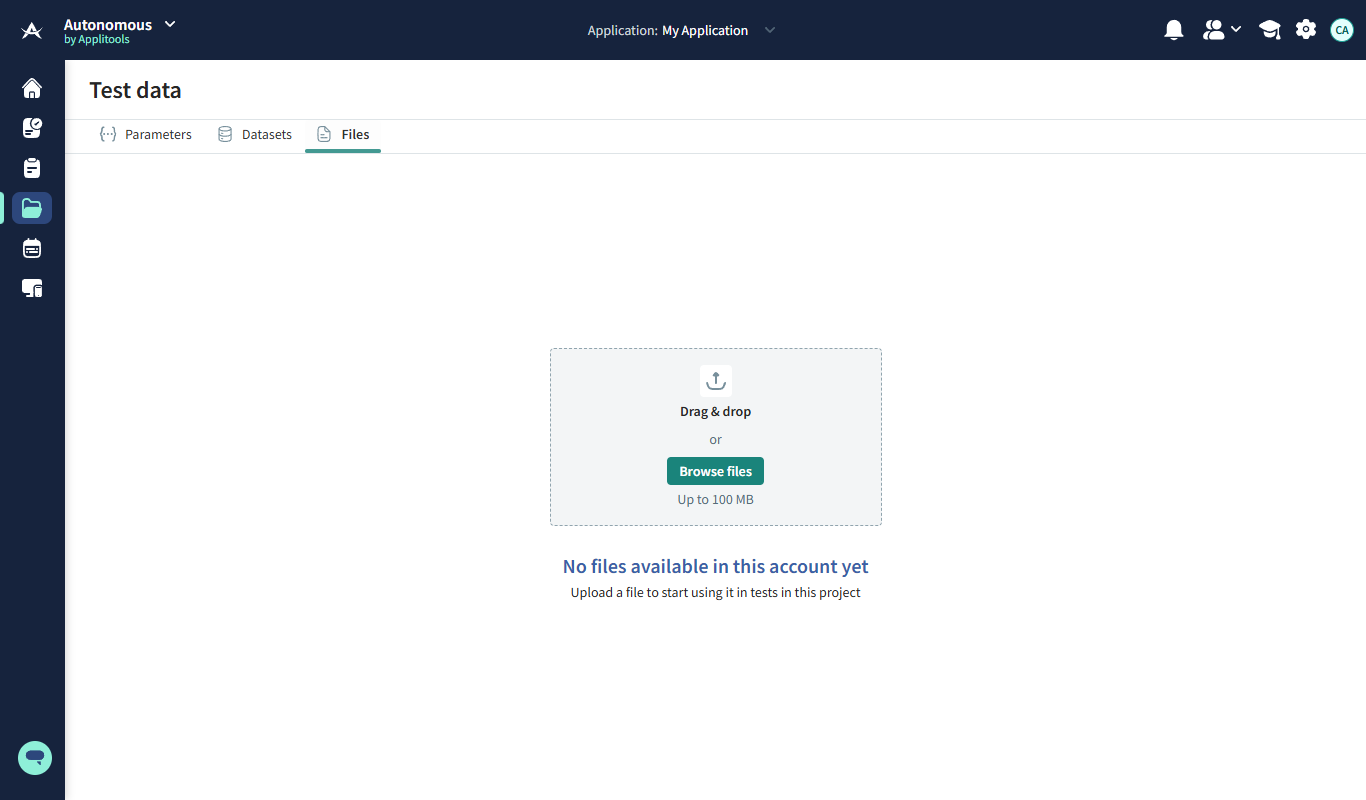
The dashboard opens. If no files have been uploaded yet, you will see the upload area with the message No files available in this account yet.
Capabilities
The dashboard supports:
- Search, sort, and filter across stored files.
- Per-file actions (for example, rename or delete).
- Bulk deletion of multiple files.
- Storage usage indicators showing how much of your quota is used.
- Uploading or dragging and dropping a file (one file at a time).
note
Only one file can be uploaded at a time from the dashboard. Once uploaded, a file can be reused across steps and tests.
File Updates and Consistency
- When you rename a file that is used in tests, all relevant file upload steps are automatically updated to display the new file name.
- If you override a file by uploading a new file with the same name, existing tests continue to run. The updated content is used without breaking the step configuration.
Practical Guidance
- Upload a new file when you want to change behavior without affecting existing tests.
- Override a file only when you want all referencing tests to use the updated content.
Storage Limits and Scope
- Maximum file size: 100 MB per file.
- Total storage:
- Up to 1 GB for paid customers.
- Up to 300 MB for free-trial customers.
- Files are scoped per application and team. Users only see files available in their current context.