Assertions
Assertions allow you to verify that specific text or elements are visible on a page. An element can only be identified in an assertion if it has a text identifier, such as ALT text for an image. An assertion begins with "Verify that," for example:
Verify that the Login button is visible
Verify that the price field starts with "$"
Verify that "quantity" equals 5
Verify that the "Email Address" field contains "@"
An assertion tests content on the page, such as whether defined text is present or a numeric value is within defined parameters. No screenshots are taken during an assertion. You can also use JavaScript for an assertion. For details and examples, see JavaScript Calls.
Creating Assertions
To Create an Assertion
- In a custom flow test, make sure that the interactive browser is connected.
- Click
 , and Autonomous will
create a new step starting with "Verify that" and enable the Select
Element button
, and Autonomous will
create a new step starting with "Verify that" and enable the Select
Element button  .
. - You can then click an element on the page to complete the assertion.
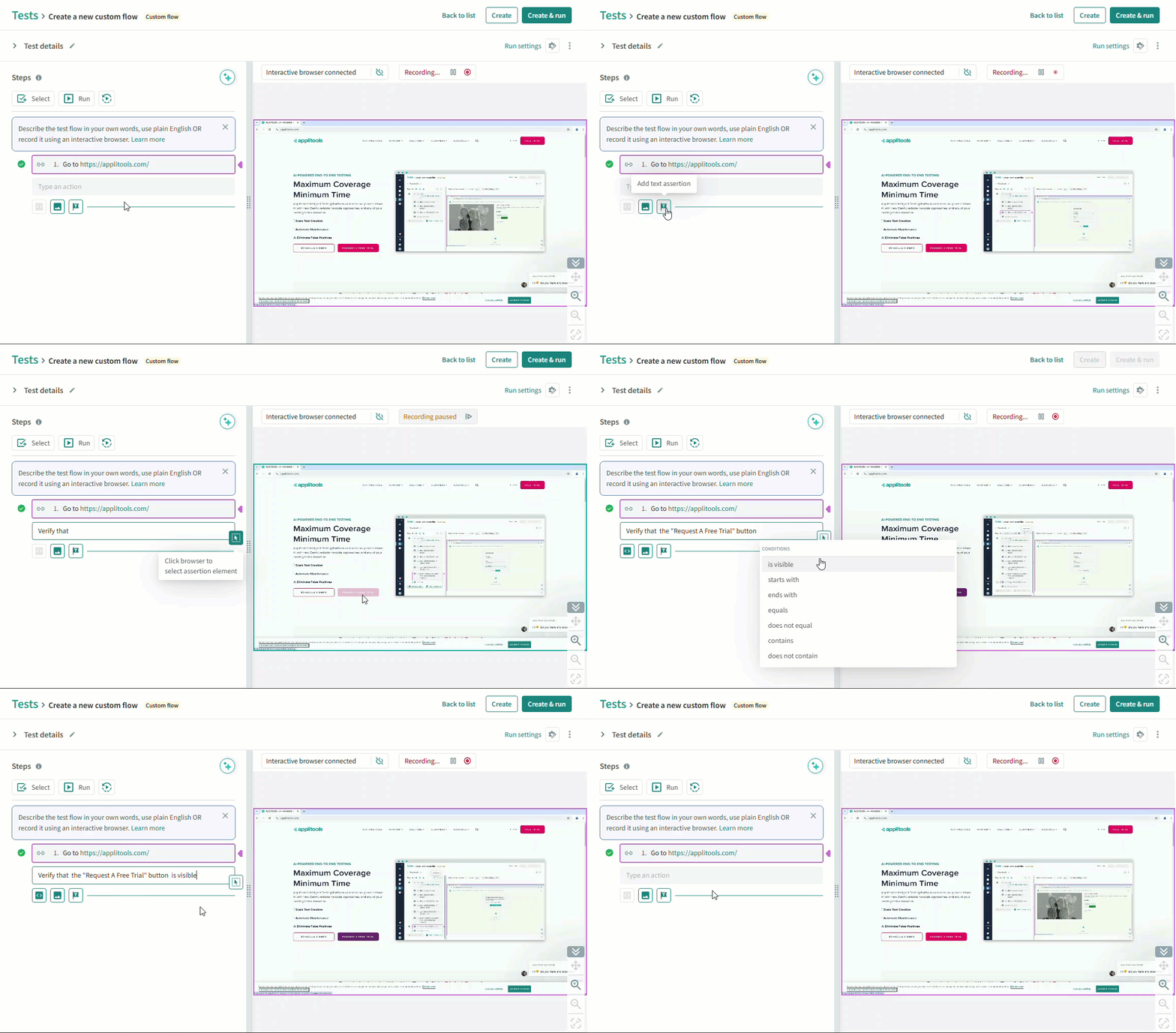
You can also manually type an assertion using natural language commands like the examples below.
Examples
Field Level Text Assertions
Use field level assertions to validate text in a field. By default, field level assertions are case-sensitive; however, you can add "Case insensitive" or "Ignore case" to an assertion.
Verify that "Name" is "George Washington"
Assert that "Username" field starts with "Joe"
Verify "Password" contains "Enter your Password"
Assert that "Username" field is "joe smith" case insensitive
Assert that "Username" field contains "JOE" ignore case
Validate that "Price" starts with "$"
Compare Values
When comparing numeric values, the system will ignore prefixes or suffixes, such as currency symbols.
Verify that that "Total Balance" is greater than $100
Verify that "Total Balance" is greater than $10 and less than $1000
Make sure that "Total Balance" is > than "Available Balance"
Capitalization
You can assert that text in a field is capitalized correctly.
Assert that the "Your name" field is capitalized
Assert that the "Your name" field is uppercase
Assert that the "Your name" field is lowercase
Objects on the Screen
You can assert that objects or text appear on the screen. These assertions are not case-sensitive.
Make sure that "Login Successful" is visible
Assert the "Search" button is not visible
Validate that "good morning" appears
The following test uses common assertions:
Go to https://sandbox.applitools.com/bank
Verify "Password" contains "Enter your Password"
Type "Admin" in "Username" field
Type "Admin" in the "Password" field
Click on "Sign in"
Verify that the element under "Total Balance" is greater than $100
Verify that the element under "Total Balance" is equal to $350
Make sure that the element under "Total Balance" is greater than $100
Verify that the element under "Total Balance" is greater than $10 and less than $1000
Make sure that "branch closes" is visible
Visually check this screen
When you create a test, if the interactive browser is connected, it
automatically checks a validation step when you enter it and displays a
 icon if it passes.
When you run a test, if an assertion step does not pass, the test will have a status of Failed, and the test will stop running at the step that failed. You can view details of the failed step in the Test Results window in the Test Flow tab.
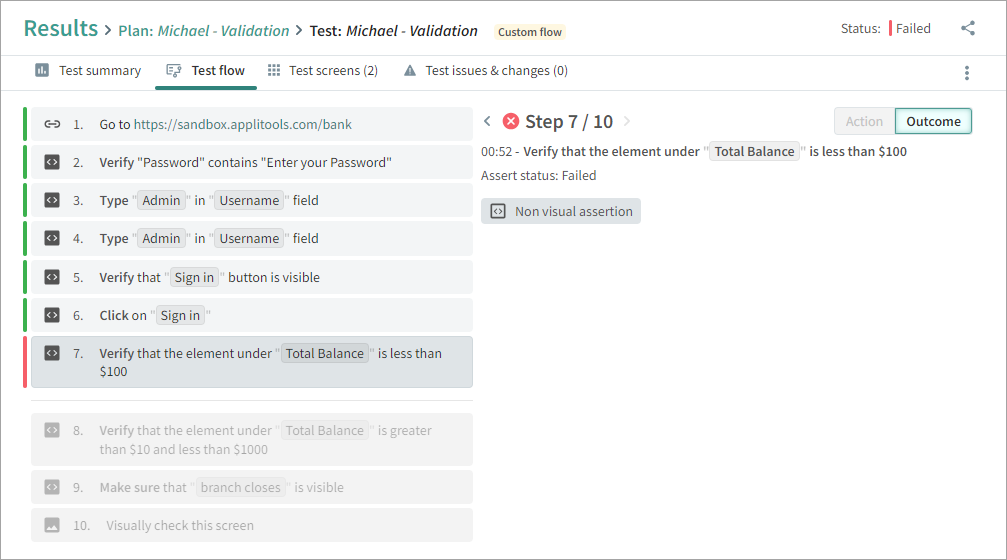
Table Content
You can verify values within table cells using natural language assertions. Table cells can be referenced by the table name, row, and column.
The following are examples of possible assertions on table content:
Verify that the "Amount" column of the 3rd row of the "Invoices" table is greater than 100
Verify that the cell at row "101" and column "Id" of the "Orders" table equals "ORD-123"
Verify the "Salary" column of the row "Cedric Kelly" of the table equals $433,060
PDF Pages
For tests that open a PDF, you can scope assertions to a specific page
using ordinal words (first, second, last) or numbers (2nd, 5th).
See PDF Testing
for how PDFs are opened in a test.
Verify that the second document page contains "Total Amount"
Assert that the 5th PDF page includes "Payment Terms"
Verify that "Subtotal" appears on the 2nd PDF page
Verify that "Confidential" is displayed on the 1st PDF page
Page Properties
In addition to verifying page elements, you can verify page-level HTTP and browser properties using the built-in {page} variable.
Supported properties include:
{page.url}{page.status}{page.headers}{page.cookies}{page.title}{page.width}{page.height}
The {page} variable is read-only and reflects the current state of the page at the time the step executes.
Examples
verify {page.url} equals "https://app.example.com/home"
verify {page.title} equals "Welcome"
verify {page.status} equals 200
verify {page.width} > 768
verify {page.cookies}.sessionId exists