Match Level
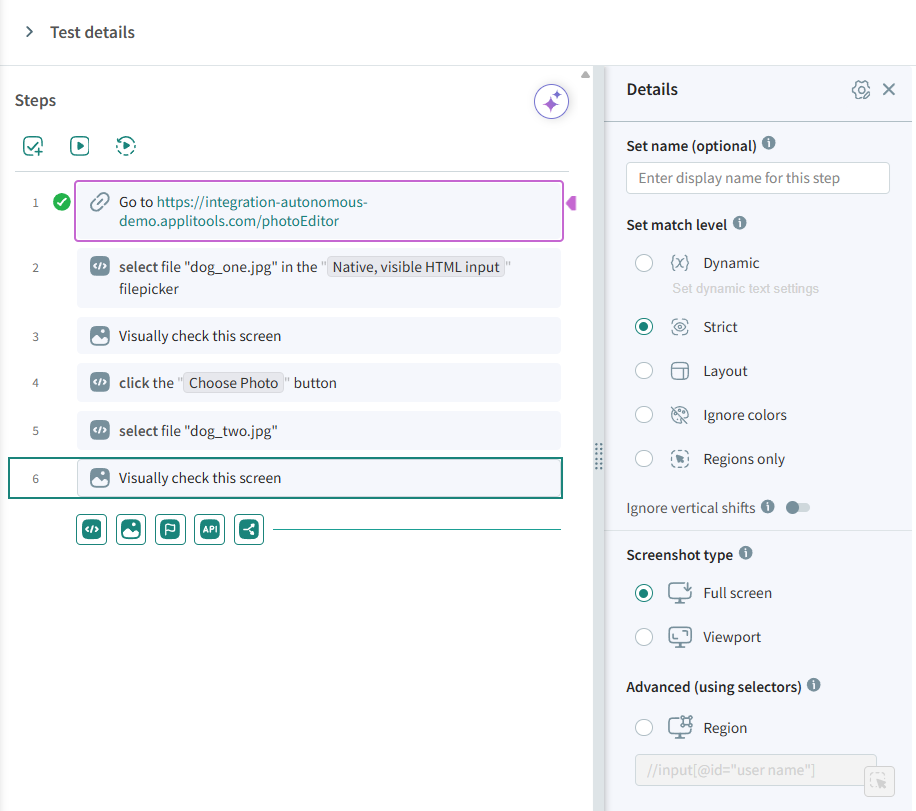
The match level determines the way Autonomous compares the checkpoint image with the baseline image. There are the following match levels:
 Dynamic
This is the default match level and, in most situations, the recommended one. Dynamic performs a strict visual comparison while automatically recognizing dynamic content — such as dates, numbers, currency, and IDs — and excluding it from the comparison. It also automatically ignores the displacements that dynamic content causes in surrounding elements, both vertical and horizontal, so a single changing value does not cascade into a page full of differences. Dynamic content is identified using predefined patterns and any custom patterns you define. Use Dynamic whenever a screen is visually stable but contains values that legitimately change between runs.
Dynamic is the default for new tests. Existing tests keep their previously configured match level; you can update them manually.
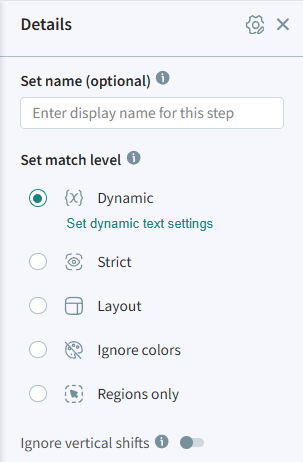
Predefined patterns
Autonomous automatically recognizes common dynamic content types, including Input Fields, Numbers, Dates, Links, Emails, and Currency, with no configuration required.
Custom patterns
You can define your own reusable patterns to match application-specific content. A custom pattern has a name and a regular expression, and can be reused across steps and tests within the same team.
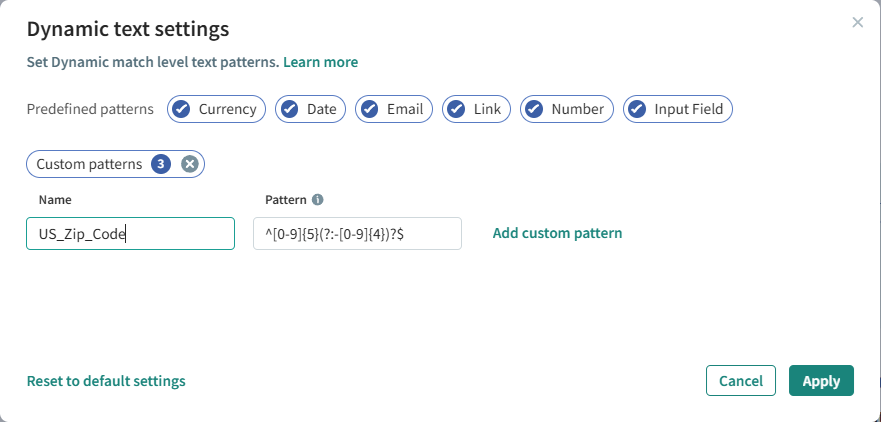
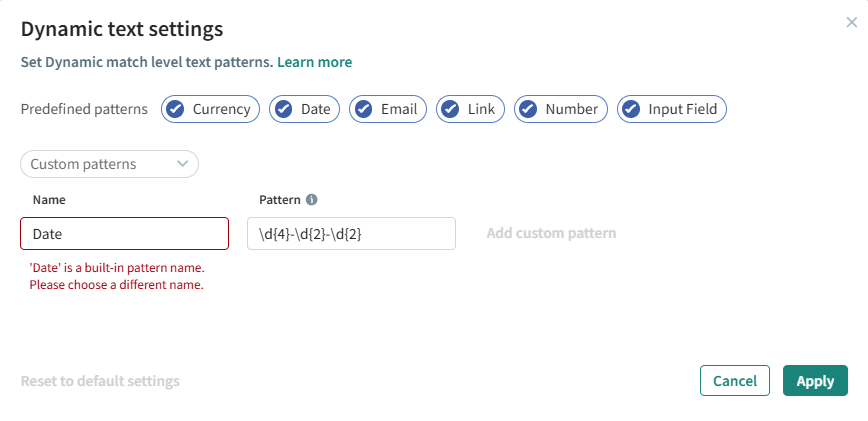
Pattern names must be between 2 and 50 characters, must be unique, and cannot reuse the name of a predefined pattern.
Custom patterns use .NET regular expressions (Regex). For details and examples of creating a Regex search, see .NET regular expressions.
Examples:
-
Phone number which may include a country code and dash, for example, "+123-456-7890" or "(123) 456-7890":
^[\+]?[(]?[0-9]{3}[)]?[-\s\.]?[0-9]{3}[-\s\.]?[0-9]{4,6}$ -
Valid Social Security number:
^(?!0{3})(?!6{3})[0-8]\d{2}-(?!0{2})\d{2}-(?!0{4})\d{4}$ -
US ZIP code:
^[0-9]{5}(?:-[0-9]{4})?$
Pattern selections apply to the current step and are not carried over to other steps. Select (or de-select) the patterns you need on each step individually.
How dynamic matching works
For a recognized pattern, Dynamic checks that the text still matches the expected format rather than the exact value. For example, if a value is identified as a Date, a changing date is accepted as long as it remains a valid date — only an invalid or broken format is flagged.
Auto-ignored displacements
When Dynamic match level is applied to a full checkpoint, Autonomous automatically tolerates positional shifts in elements that surround dynamic content. If a defined Ignore, Layout, or Dynamic region — or a detected dynamic pattern such as text or a date — causes the elements around it to shift vertically or horizontally, those shifts are not flagged as differences.
You typically no longer need a Floating region just to absorb shifts caused by dynamic content. Floating regions remain useful for explicit positioning ranges where an element itself is allowed to move within bounds.
For details on how dynamic content appears in the Test Analyzer, see Viewing Dynamic Content.
 Strict
This match level verifies that the screen content matches the baseline image closely enough that the human eye would not see any difference. With this level, Autonomous detects changes in text, font, color, graphics, and position of elements. It detects differences that are visible to the human eye while ignoring differences in pixel values that are platform dependent due to the rendering software and hardware.
 Layout
This level is useful for validating that the screen layout is consistent. With this match level, Autonomous identifies the various screen elements in the checkpoint and baseline images, such as text, images, buttons, and columns, and verifies that the relative positions of these elements are consistent. This match level can detect elements that have appeared, disappeared, or moved. With this match level, the Autonomous matching engine ignores differences in the actual content text and graphics, color, and other style changes. This match level is useful for screens with dynamic content, such as banner ads or content which changes every time the screen is refreshed.
 Ignore colors
This match level is similar to the strict match level but ignores changes in colors. It is effective when your content is static but the color varies, for example if there are buttons or screen elements that can appear in a variety of colors.
 Regions only
This match level treats all checkpoints as Passed by default and performs no visual assertions. It is intended for cases where you only want to validate specific elements or areas of a page.
If no regions are defined, the test still passes but a red dot indicator appears in the results and next to the relevant checkpoints in the Screens view. This indicates that although the test passed, no visual assertions were applied.
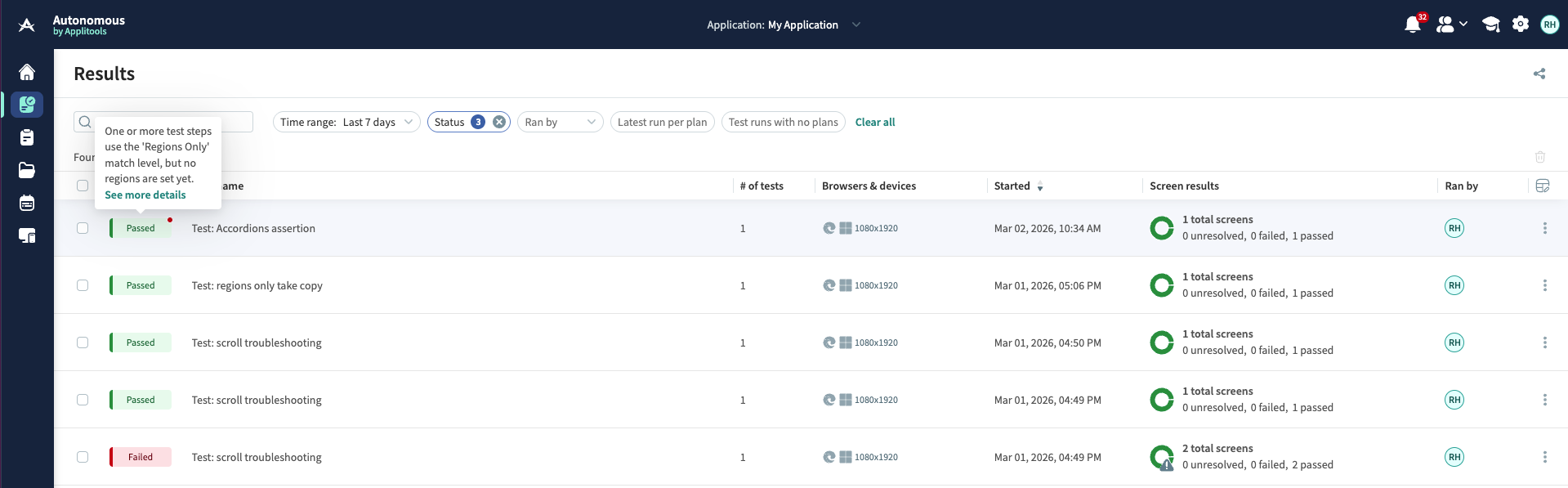
When you open the test, the Test summary tab displays a banner indicating that no regions have been set yet.
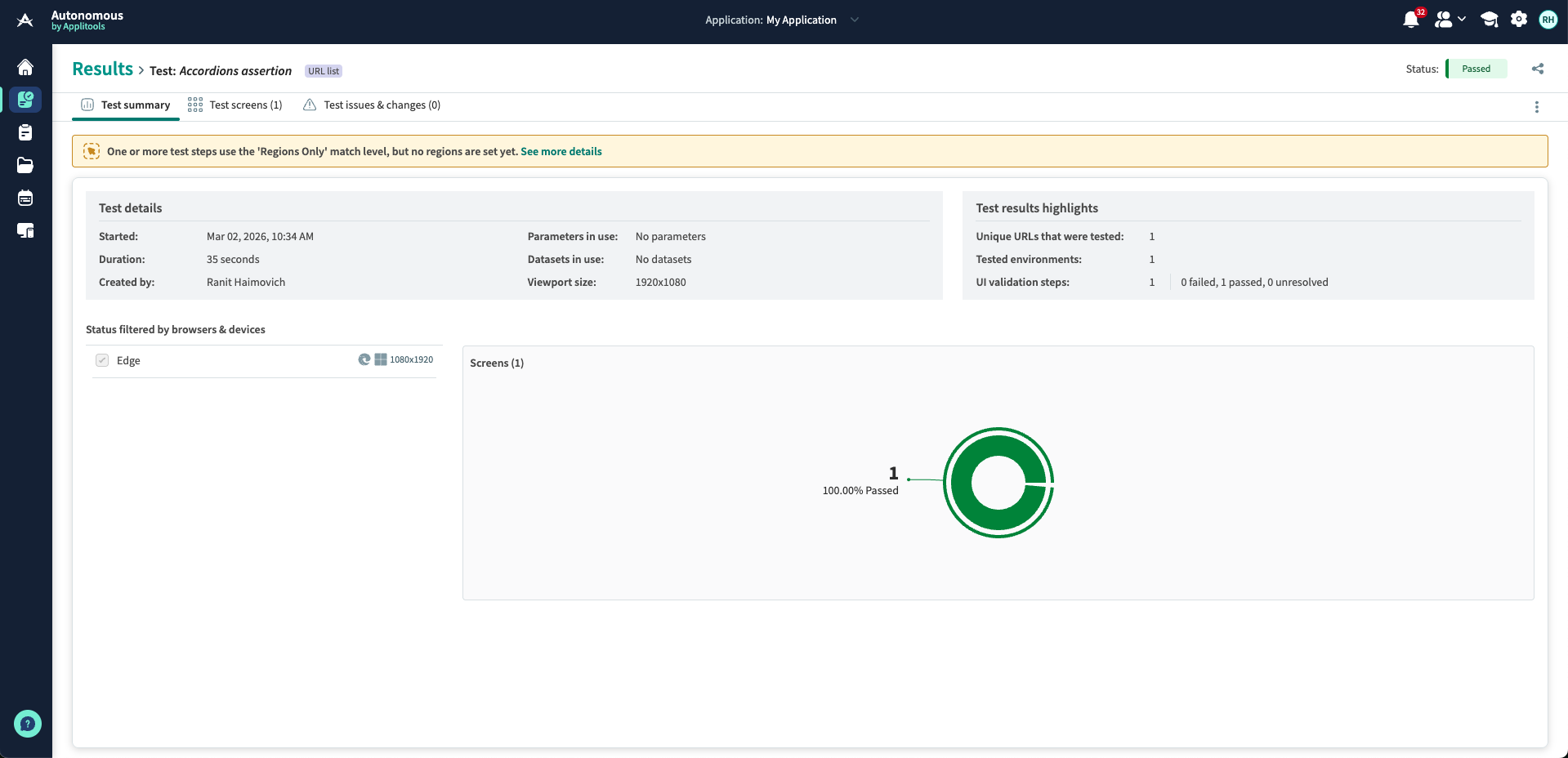
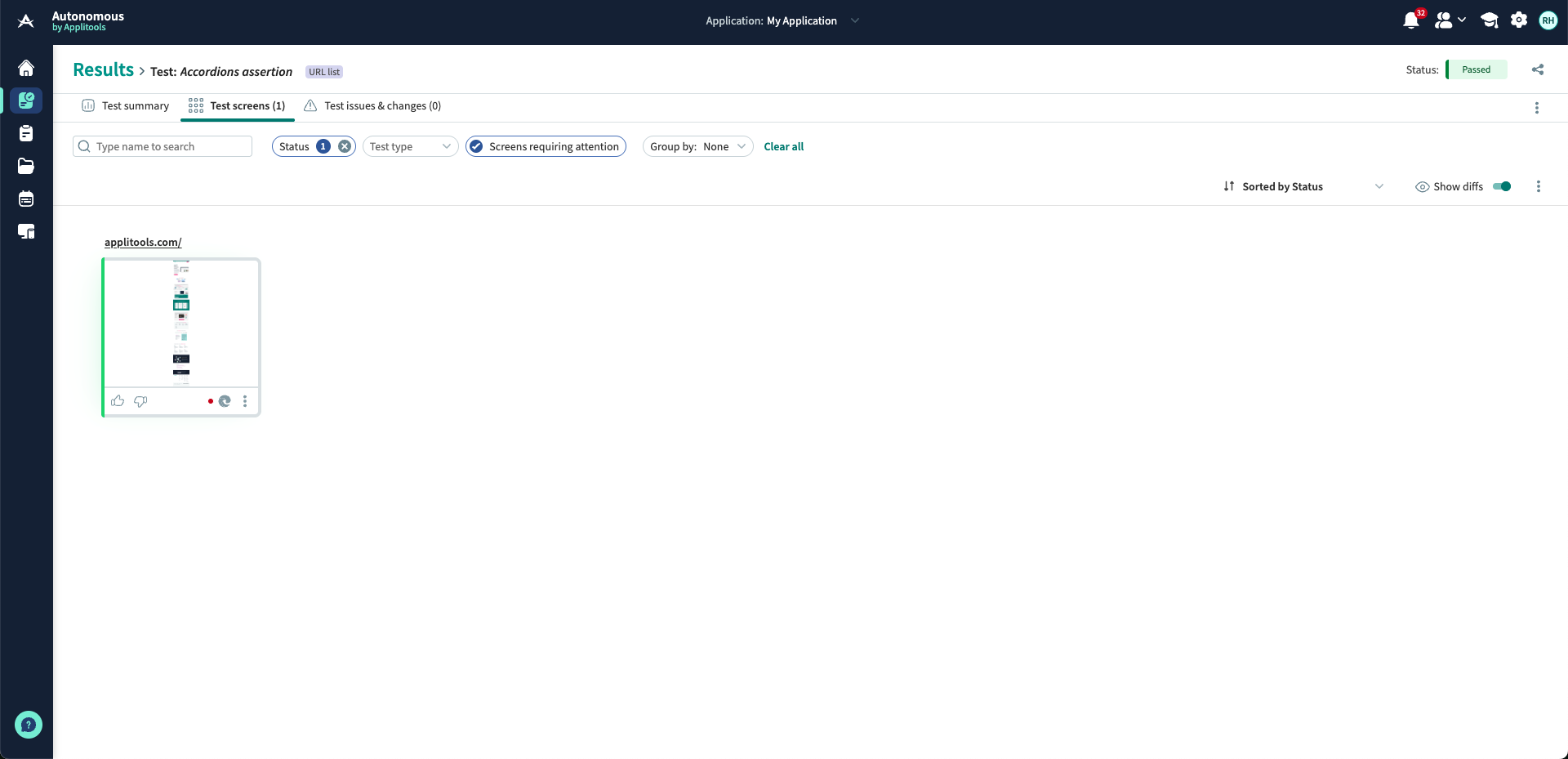
To view all checkpoints using Regions Only where regions have not yet been set, do one of the following:
- Click See more details from the banner or tooltip.
- Filter by Status = Passed and Requires Attention = Yes.
After the run, you can Define Regions in the Test Analyzer to enable visual assertions. These regions will apply to future test runs; the current run is not re-evaluated.
You can modify the match level for each image in a test. In the Test Analyzer window you can define a match level for regions within a screen.
To Set the Match Level in a Custom Flow Test
Click on a Visually check this screen step and select the match level.