Visual AI Options in Custom Flow Tests
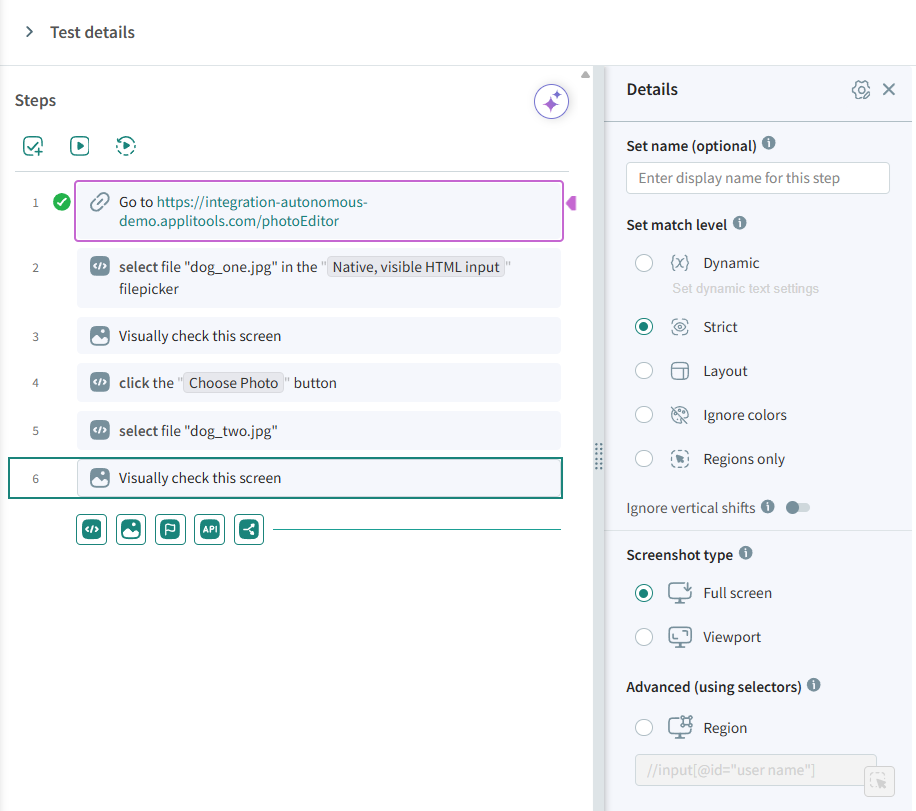
Visual AI options control how Autonomous analyzes and compares screens. These settings determine what parts of a page are captured, how differences are detected, and which kinds of visual changes should be ignored.
Each option fine-tunes how the visual comparison behaves, allowing you to customize your visual testing.
Available Options
| Option | Description |
|---|---|
| Match Level | Defines how strictly Autonomous compares checkpoint and baseline images. Choose between Strict, Dynamic (default), Layout, Ignore Colors, and Regions Only. |
| Screenshot Type | Specifies what portion of the page to capture - full page, visible viewport, or a specific region. |
| Ignore Vertical Shifts | Ignores differences caused by content that has shifted vertically on the page without other visual changes. |
How to Configure
When editing a Visually check this screen step in a Custom Flow Test:
- Select the step in the test editor.
- Use the Visual AI panel on the right-hand side to set:
- Match Level
- Screenshot Type
- Ignore Vertical Shifts
- Save or rerun the test to apply the updated settings.