Applitools Test Statuses
Test Statuses
There are 6 core statuses that can be applied to an Applitools Visual AI test:
| Status | Example | Description |
|---|---|---|
| New |  | A test that ran to completion without an existing baseline. All steps are considered "Passed" and a new baseline is created for future use. |
| Passed |  | A test that ran to completion with an existing baseline where no differences were found by Eyes Visual AI. |
| Unresolved |  | A test that ran to completion with an existing baseline where visual differences were found by the Eyes Visual AI. |
| Failed |  | A previously Unresolved test that was marked as Failed. |
| Running |  | The test is currently running and has not yet completed. |
| Aborted |  | The test was aborted before all the steps were completed. |
| Empty |  | The test ran to completion, but no checks were processed. |
Updating the Test Status
Accepting or Rejecting Differences
When a test is given the status , the differences flagged by the Visual AI should be reviewed. The reviewing user should decide if the differences are an expected change made to the application under test or if they're an unexpected change.
Accepting Differences
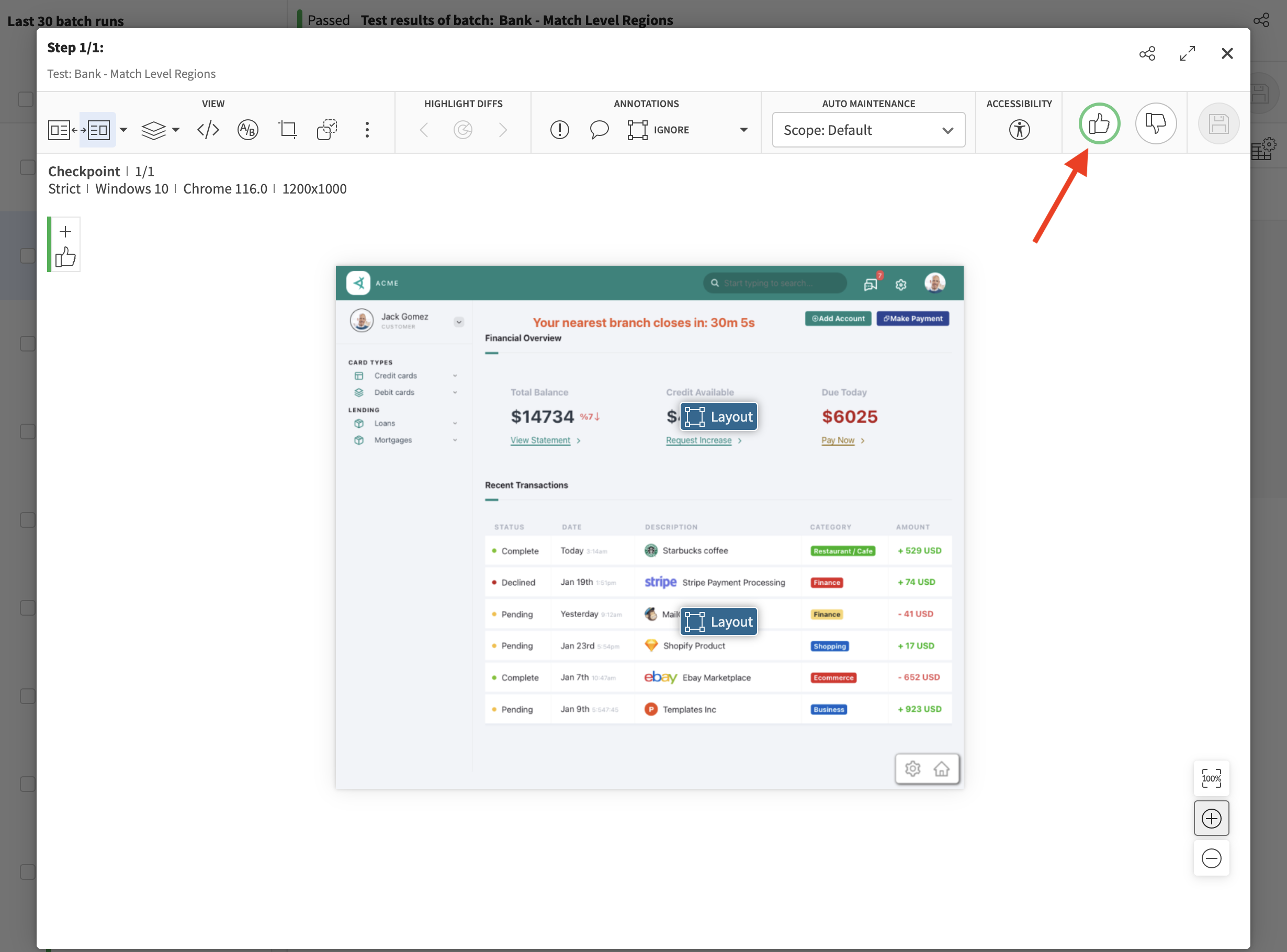
If the changes are expected, the reviewing user should click the  button to accept the differences. This will update the test status to and will update the baseline steps to reflect the changes going forward.
Rejecting Differences
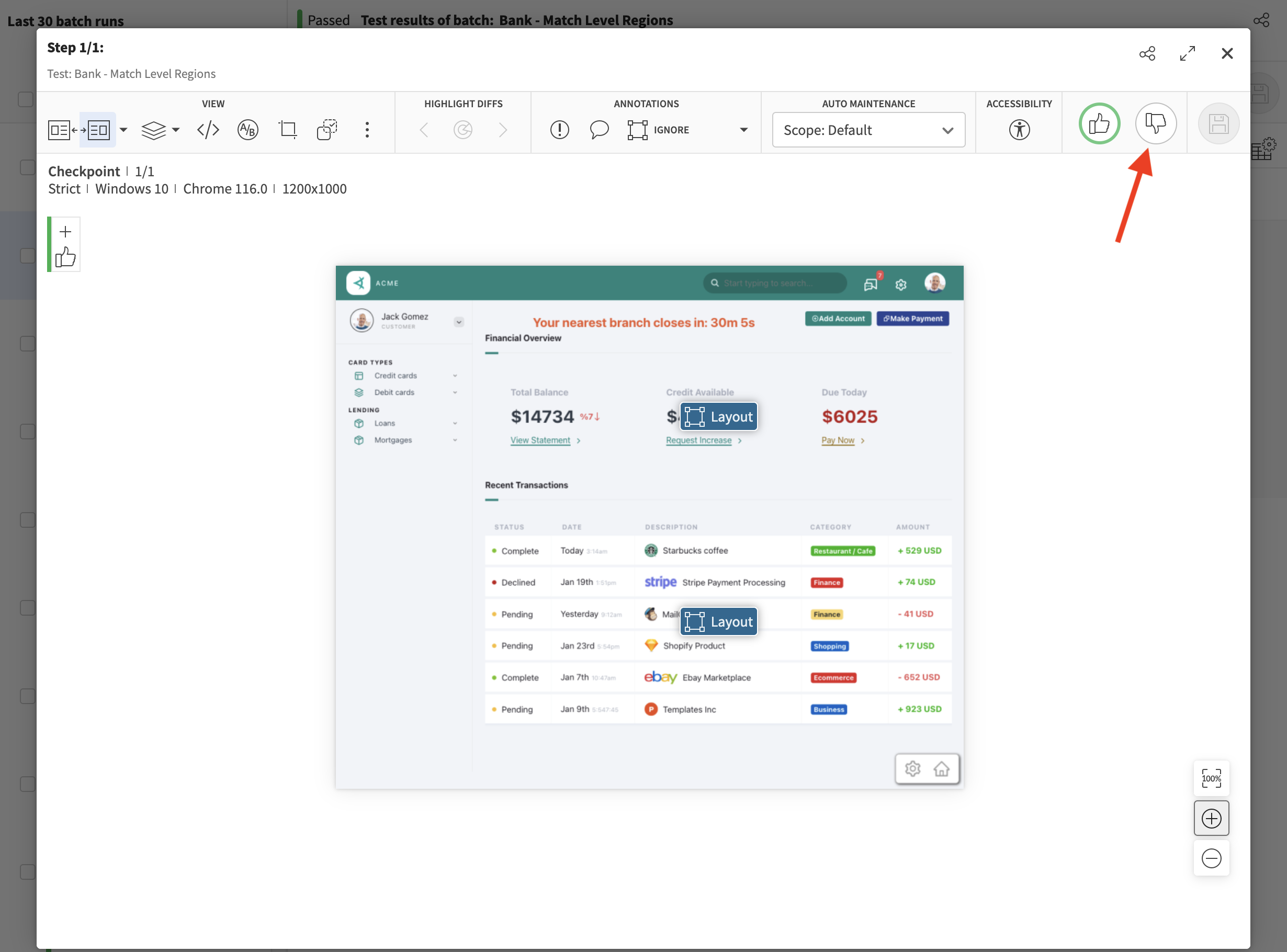
If the changes are unexpected, the reviewing user should click the  button to reject the differences. This will update the test status to and will not update the baseline steps.
Accepting, Rejecting or Overriding Multiple Test Results
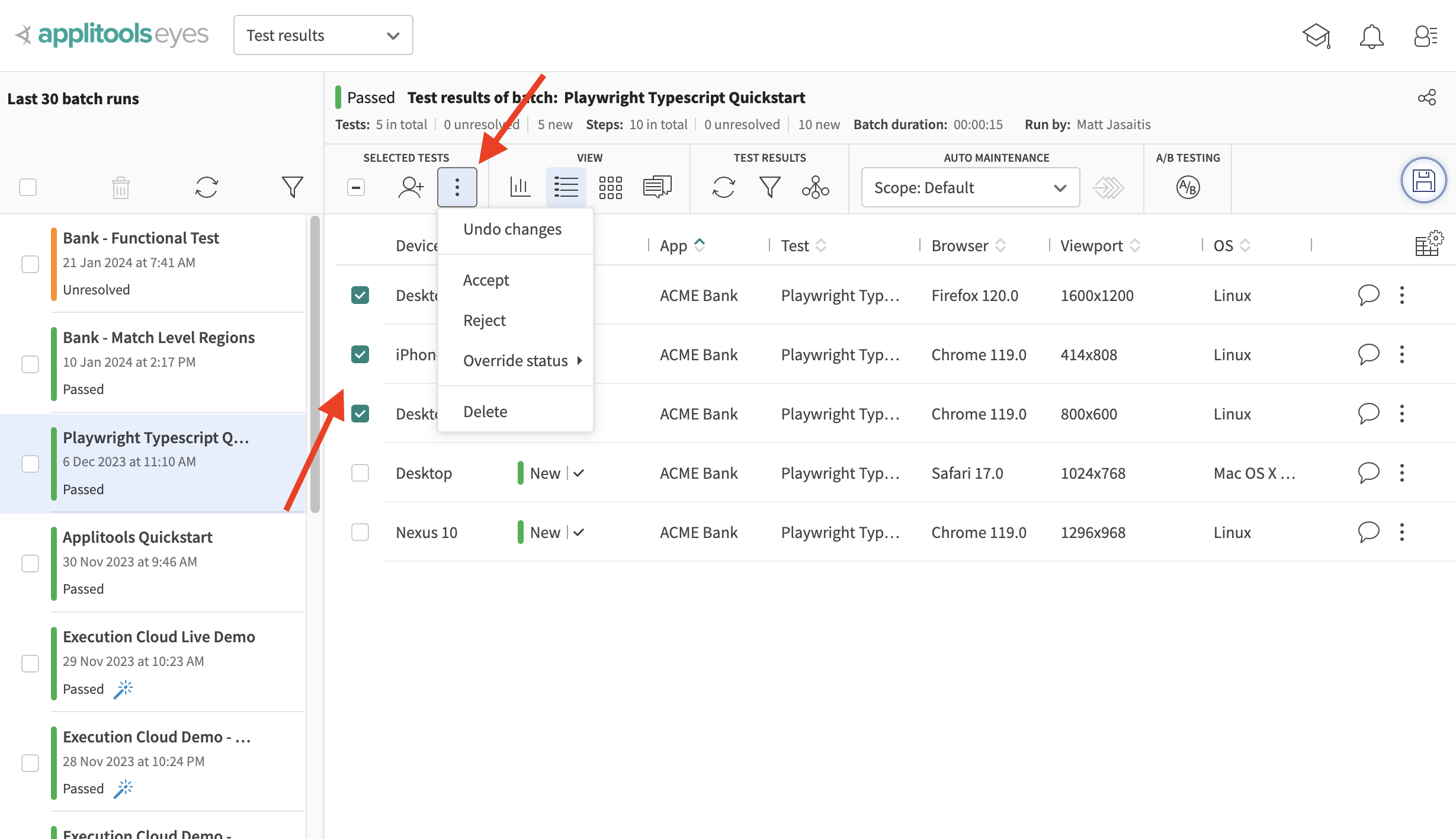
You can use the checkboxes shown below to select multiple test results, then, using the option indicated below, you can accept, reject or override multiple test results at once:
Reverting to a Previous Baseline
If you accepted and saved a baseline update by mistake, you can revert to the previous baseline by clicking Reject on the desired test and then Save.
Manually Overriding the Test Status
You can click on the status of a test to mark the test as passed or failed. Overriding the status is intended for edge cases after the differences have been reviewed. For example, a step was rejected but you still want the test to count as Passed, or the other way around.
The status of an Unresolved test can't be changed while any of its steps still have unresolved differences. First review each unresolved step and accept or reject its differences, then save the baseline. After all the steps are resolved, you can override the test status.
Eyes requires this review so that real bugs are not missed, and so that the same differences don't appear again in the next run.
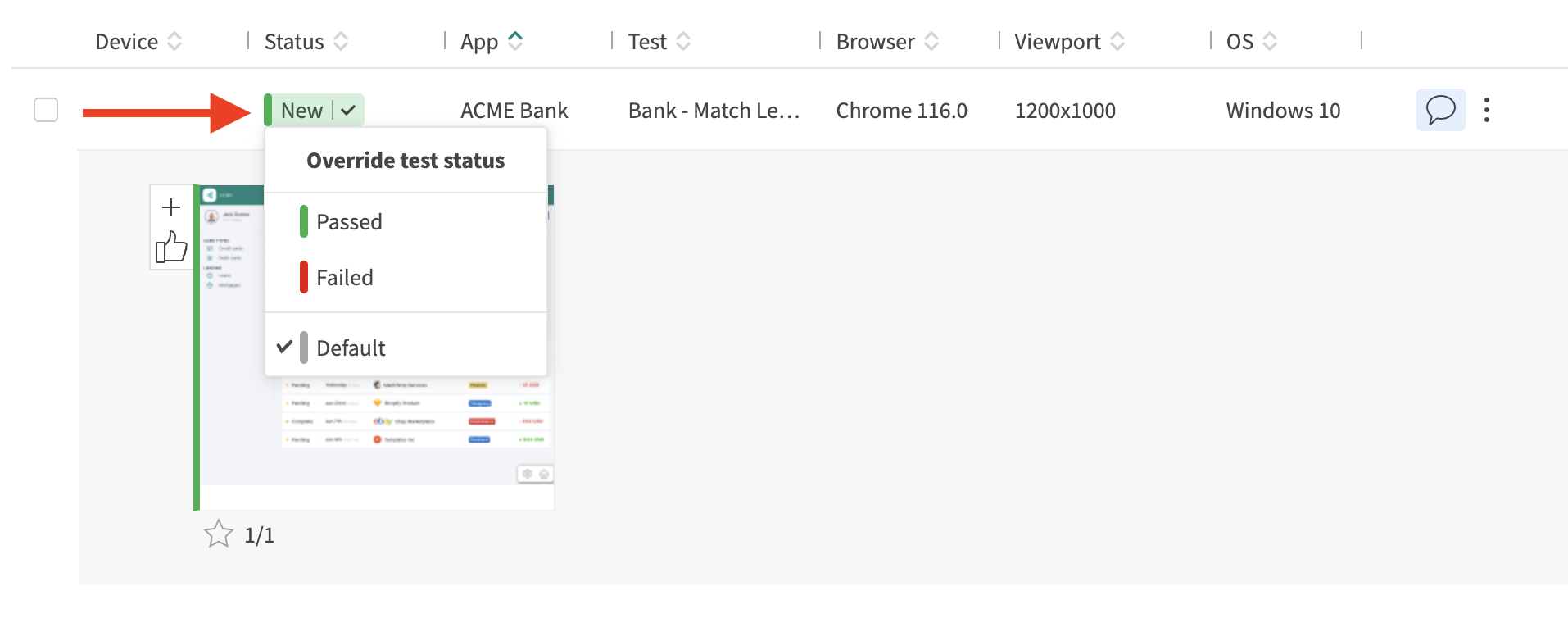
Select Default for the system to automatically define a status. If all steps in the test have a status of passed, the test will be set to Passed, otherwise it will assign a status of Failed.