Diff Descriptions
Eyes classifies every visual difference between a baseline and a checkpoint into a plain-English description — for example, "Font family changed from Calibri to Arial". These descriptions let you review results faster, group functionally-equivalent UI changes for bulk maintenance, and ask AI assistants to summarize what changed across a batch.
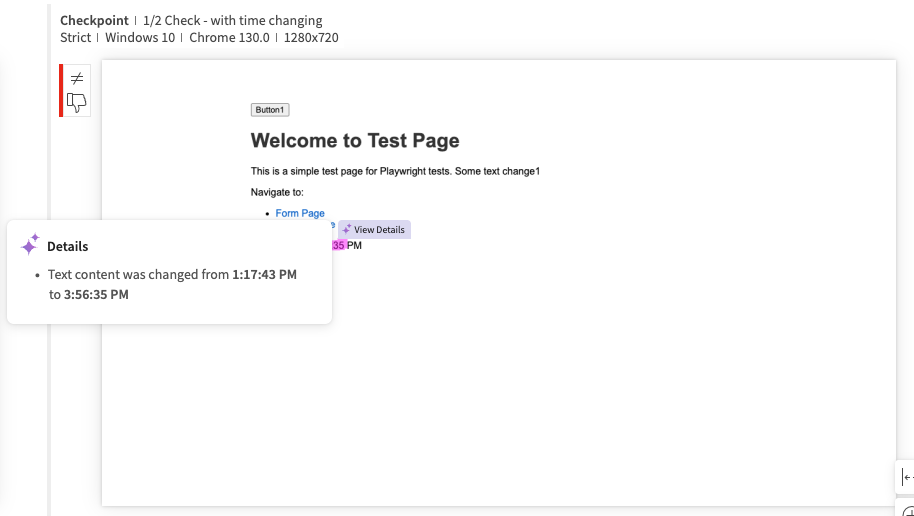
Why Diff Descriptions Exist
When a UI change affects many checkpoints in the same way — a font swap, a button-color change, a string replacement — reviewing each step manually wastes time. Diff descriptions classify each diff so that:
- You can quickly identify what kind of change is in front of you without inspecting pixels.
- You can group similar diffs and accept or reject them together.
- AI-assisted tools (Step Overview, Batch Overview, the MCP server) can produce concise summaries of what changed.
Match Levels and Dynamic Data
The categories below only apply to diffs Eyes actually flags. Under ignore, dynamic, or layout match levels, dynamic content is not flagged as a diff and so is not classified. If dynamic content is flagged (for example, under strict match level), Eyes classifies it using the rules below rather than attempting to re-detect it as dynamic data.
Categories
Diffs fall into one of three top-level categories.
Formatting & Style
Visual changes to how content is presented, without changes to the content itself.
Font & Spacing
- Font size was changed from
<x>to<y>. Excludes buttons and anchors (link elements). - Font family was changed from
<x>to<y>. Excludes buttons and anchors. - Font foreground color was changed from
<x>to<y>. - Font style was changed from
<x>to<y>— normal, italic, underline, strikethrough, or font weight.
Headings
- Font role was changed from
<x>to<y>— for example,<h1>to<h6>.
Layout
- Background color was changed for layout element from
<x>to<y>. Excludes buttons and anchors. - Border style was changed for layout element from
<x>to<y>— border color, border width, or border corner radius. Excludes buttons and anchors.
Clickable Elements
The same Font, Background, and Border properties as above, but scoped to clickable elements (buttons, links). Additionally:
- Hover state was changed for clickable elements — covers all hover-state properties including style and border.
Content and Data Integrity
Changes to the actual text or graphic content in a checkpoint.
- Text content was changed from
<x>to<y>— when the new text is 10 words or fewer, both old and new values are shown. - Text content was changed — when the new text is more than 10 words, only the fact of the change is reported.
- Graphic (icon, SVG, image, or video) was changed for element
<x>— where<x>identifies the element by name, path, or content.
Unclassified Differences
Any difference Eyes cannot place into the categories above is reported as an Unclassified difference.
Multiple Categories Per Step
A single checkpoint can contain diffs from more than one category. Eyes applies the following rules:
- A step whose diffs fall into 2 or 3 categories is grouped under the combined categories.
- A step whose diffs fall into more than 3 categories is placed under a Multiple differences category.
- A step that contains only unclassified diffs is placed under Unclassified differences.
- A step that mixes up to 3 classified categories plus unclassified diffs is grouped under the combined categories alongside Unclassified differences.
Where You'll See Diff Descriptions
Diff descriptions surface in three places in the Test Manager UI, plus the server API and the MCP server.
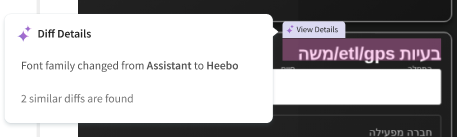
Per-Diff Details
Hover any diff in the Step Editor to see the diff description for that specific change, along with a count of similar diffs in the batch.
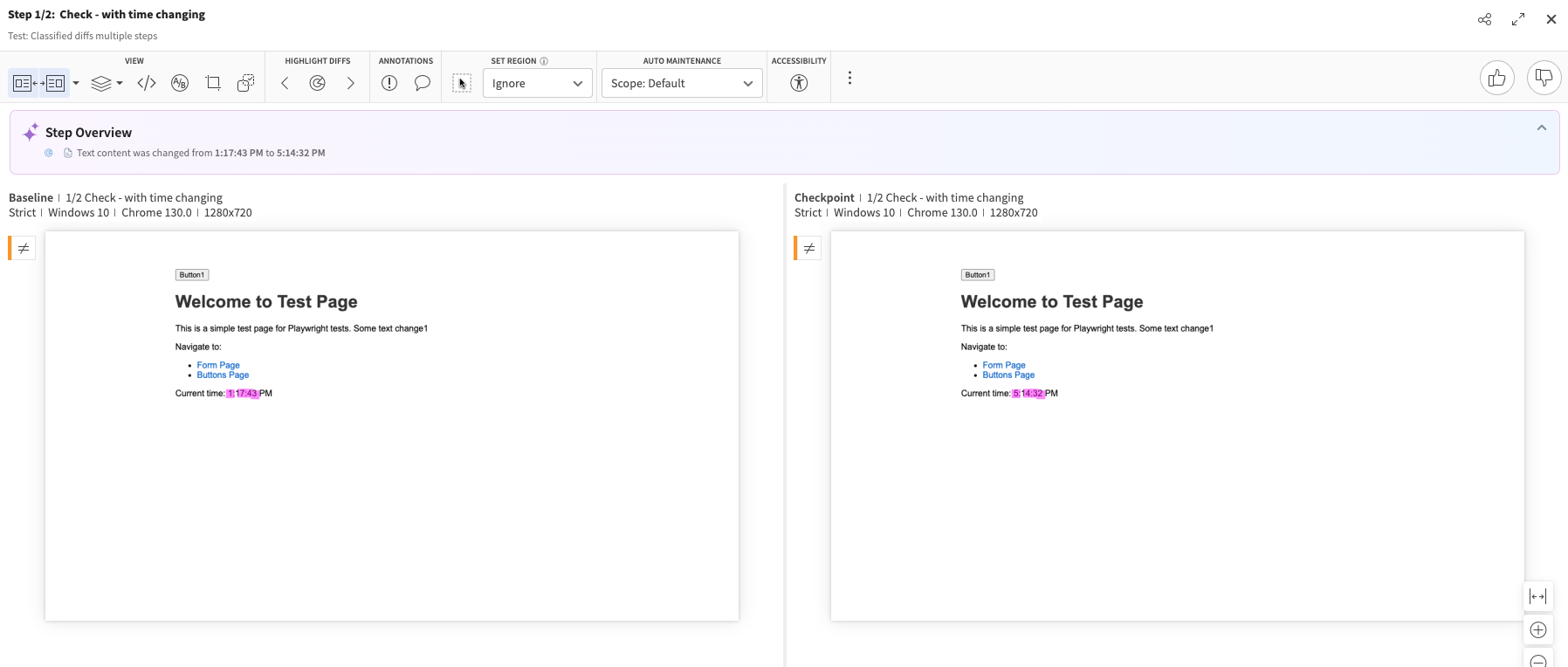
Step Overview
The Step Overview panel summarizes every change in the current checkpoint at the top of the Step Editor.
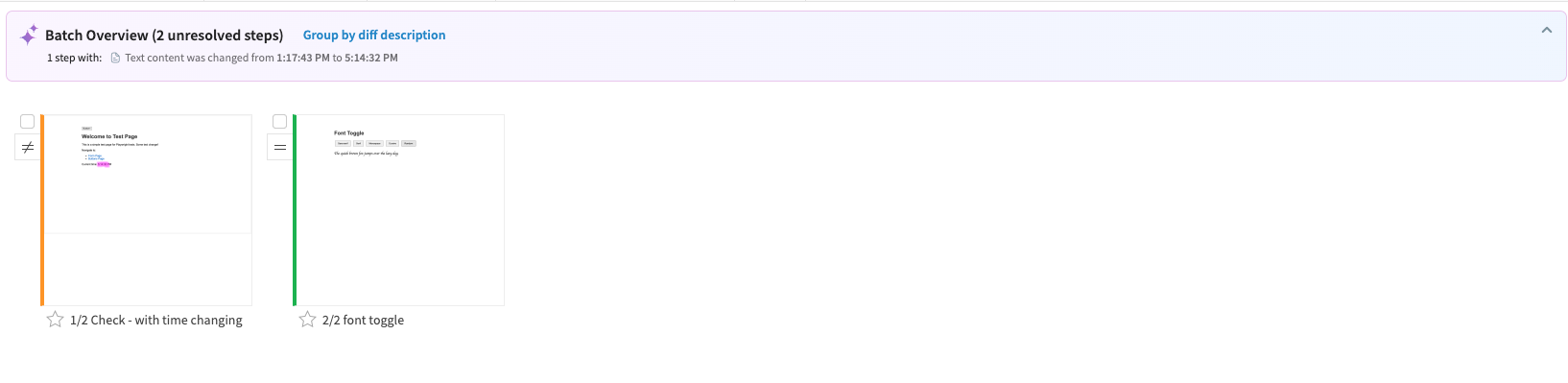
Batch Overview
The Batch Overview banner on the Test Results page rolls up every diff description in an unresolved batch and lets you re-group the view by diff description with one click.
Other Surfaces
- Grouping unresolved steps in the Test Manager — see Group by Diff Description.
- Filtering by diff type on the Test Results page — see Filter by Diff Type.
- Programmatically over HTTP — see List step diff descriptions.
- From an AI assistant via MCP — see the Applitools MCP Server page.