Test Flow View
The Test Flow view displays details of a custom flow test. This view is only available for custom flow tests; it is not available at the plan level. The view shows all the steps in the custom flow test with an image of the website or application at each stage.
Click on a step in the test to view a screenshot. Click on the screenshot to view a larger version.
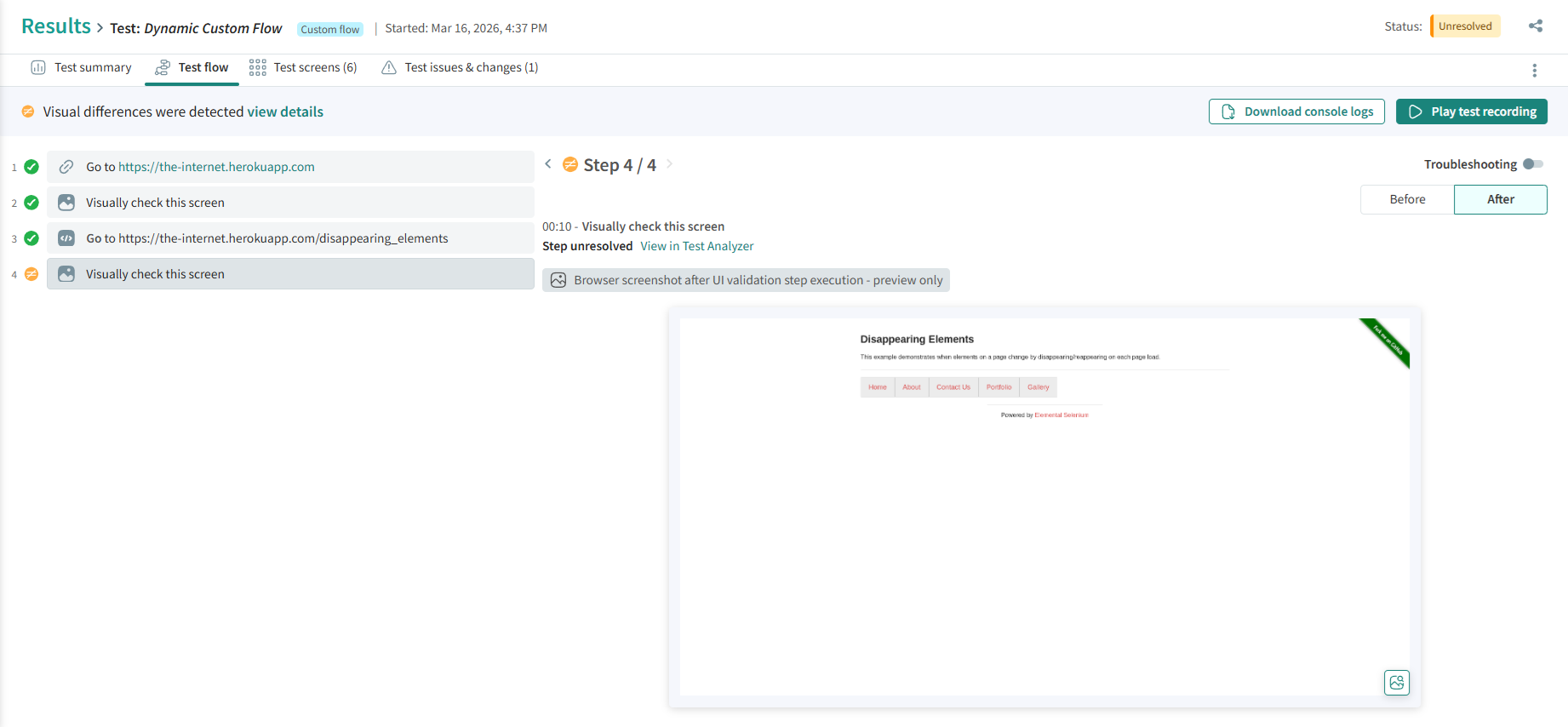
If a step is a UI Validation step (indicated by a
 icon), you can use the
Action and Outcome buttons to view the screen
before and after the screenshot was taken. If the step is unresolved,
there is a link to the Test Analyzer where you
can review and accept or reject diffs.
icon), you can use the
Action and Outcome buttons to view the screen
before and after the screenshot was taken. If the step is unresolved,
there is a link to the Test Analyzer where you
can review and accept or reject diffs.
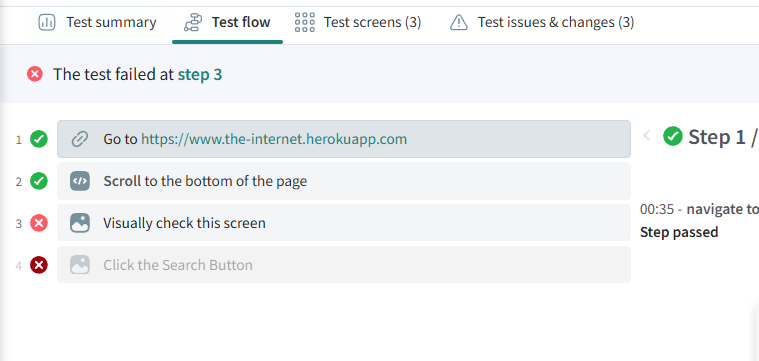
If a step failed, a  icon is displayed at the step that failed, and no
further steps are processed.
icon is displayed at the step that failed, and no
further steps are processed.
Troubleshooting for Failed Steps in Custom Flow
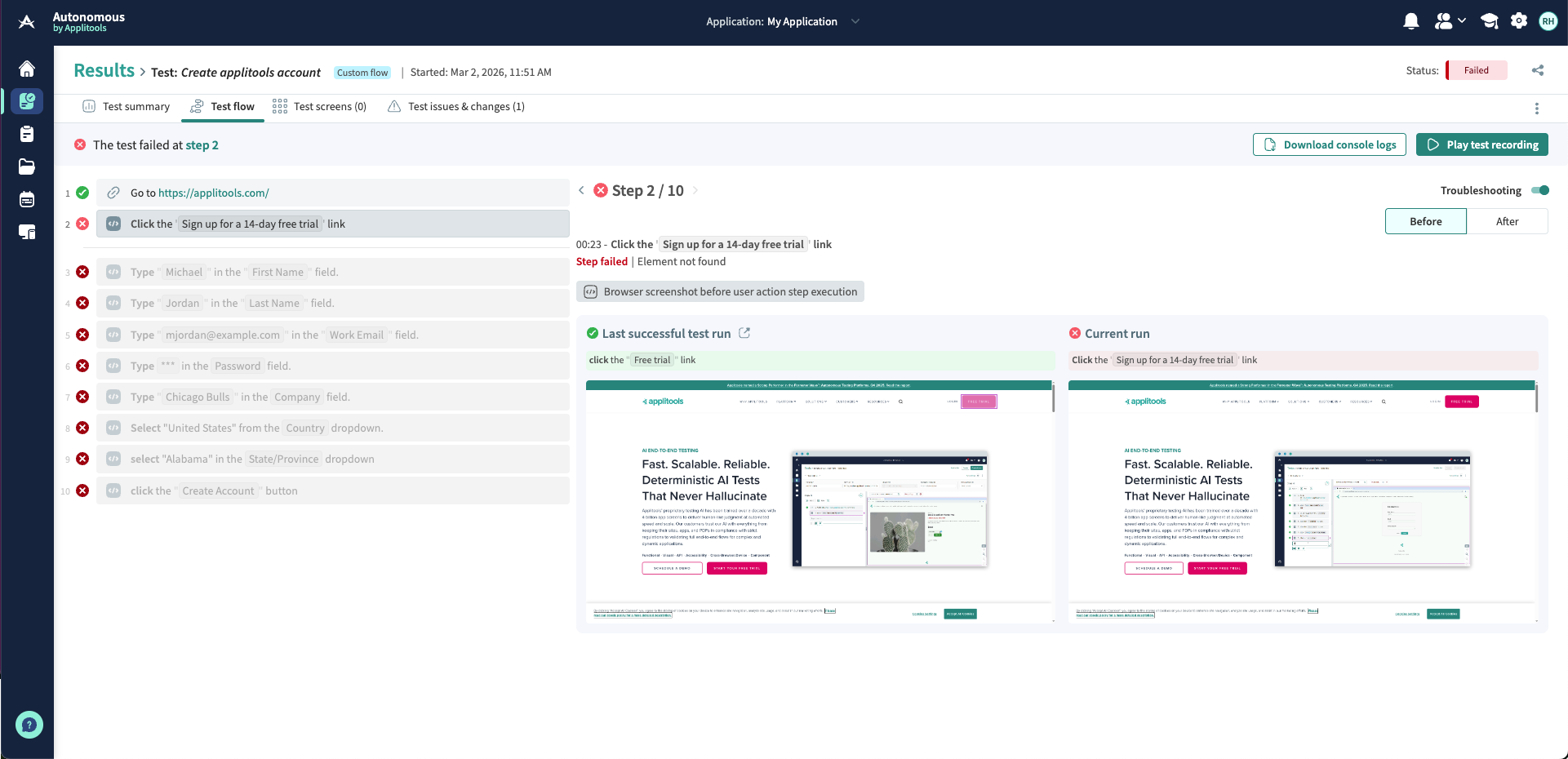
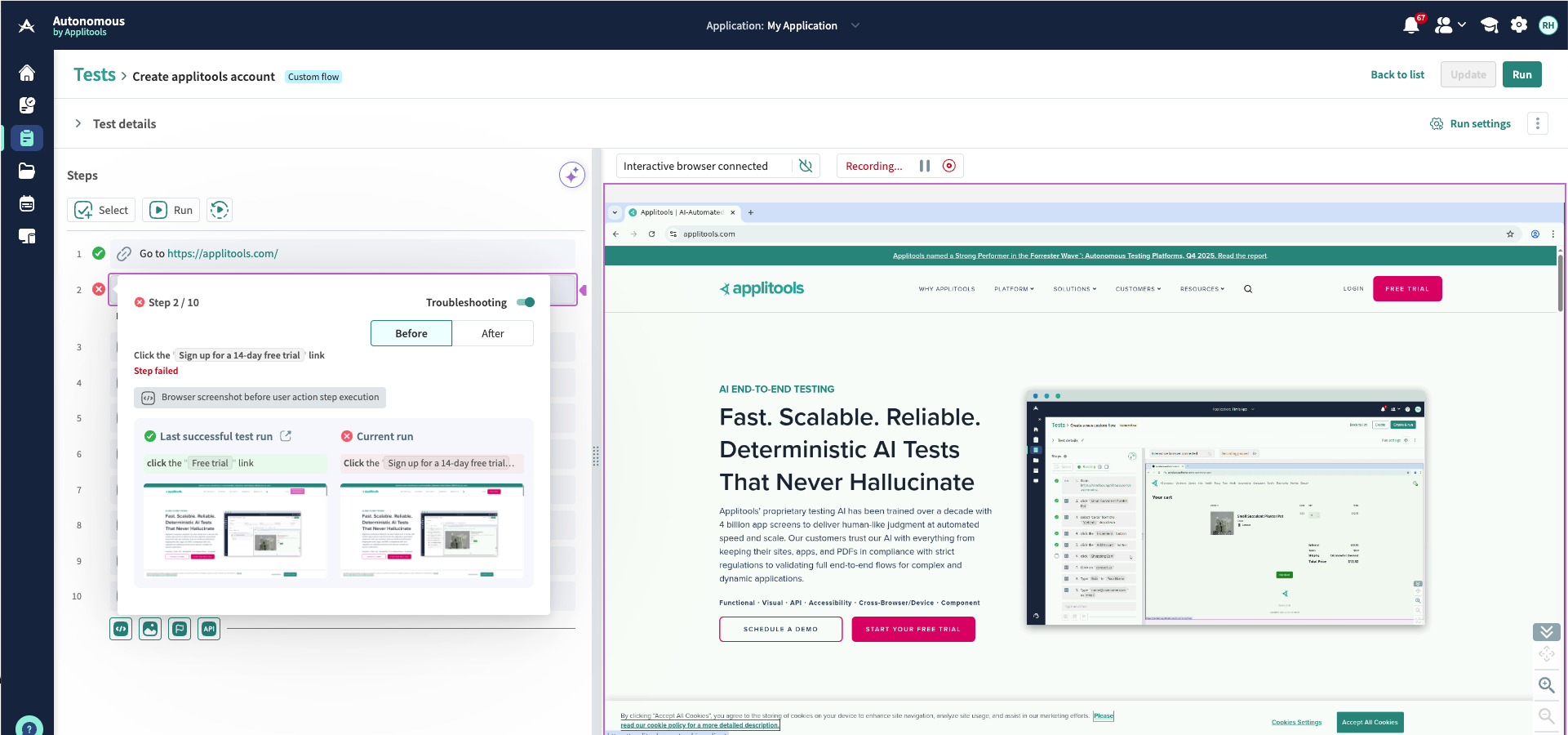
When a Custom Flow test step fails, you can use Troubleshooting mode from the Test Flow view in the Results page or while reviewing step results during test authoring to compare the current run with the last successful run and understand the cause of the failure.
This comparison enables faster root cause analysis and reduces troubleshooting time.
Failed Steps
For each failed step, the platform displays:
-
A screenshot from the last successful run
-
A side-by-side comparison between the current failed run and the previous successful run
When a Step Fails
You can access Troubleshooting mode in several ways:
- Clicking the step from the Issues & Changes view navigates directly to the failed step.
- Clicking the failure summary at the top of the Test Flow view navigates directly to the failed step.
- From the step execution results during test authoring.
In addition:
- You can manually enable the Troubleshooting toggle for any step while authoring a test.
- You can manually enable the Troubleshooting toggle for any step from the Test Flow view in the Results page.
What You Can Do in Troubleshooting Mode
You can:
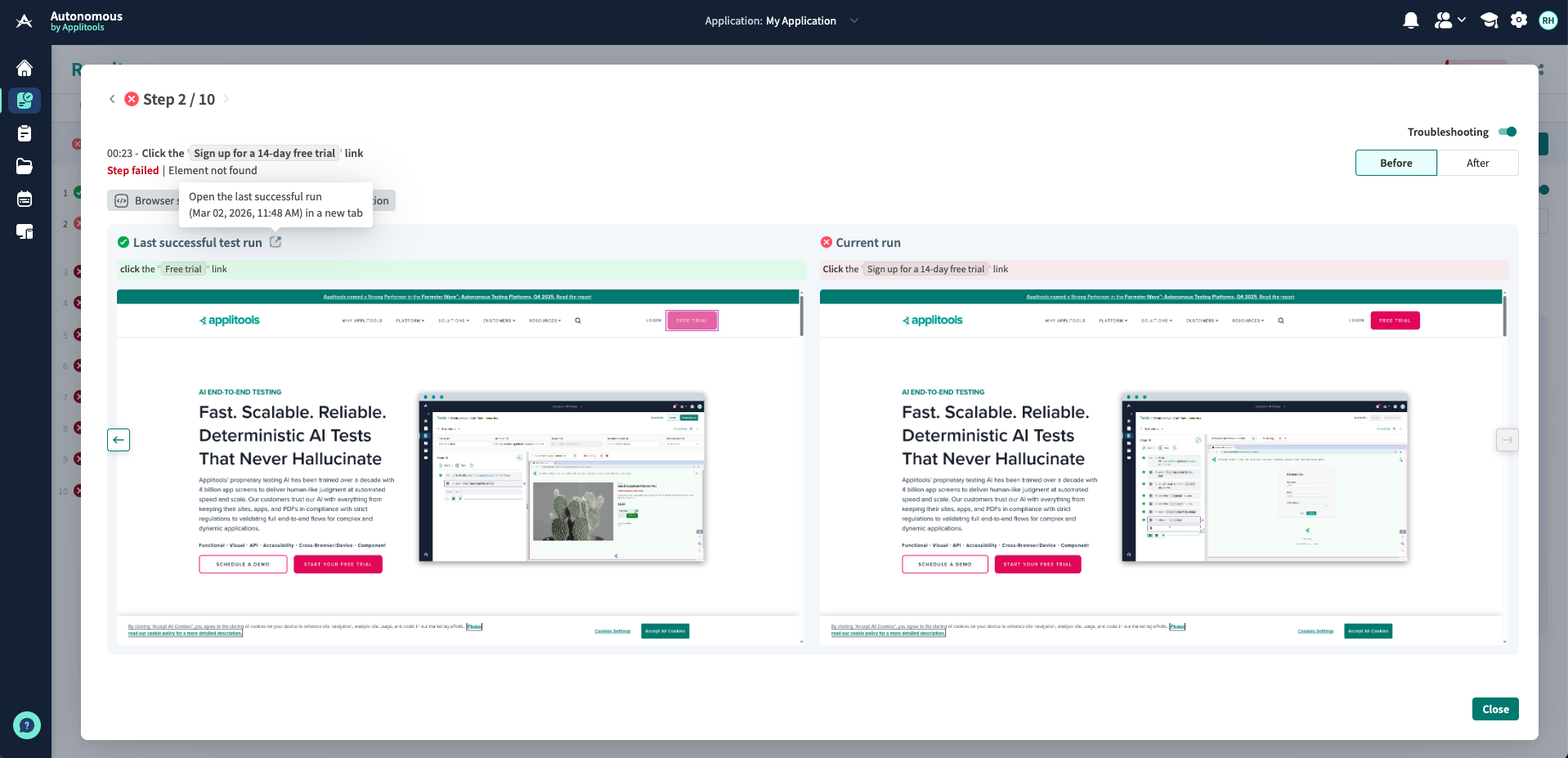
- Zoom into screenshot comparison
- Use navigation arrows to move between steps
- Review previous steps to identify where the issue originated
- Open the last successful run in a new tab
Navigating between steps helps you determine whether the issue occurs in the failed step itself or was caused by an earlier change in the flow.
Additional Test Artifacts
For each Custom Flow test, the following artifacts are always available, regardless of test status:
- Download console logs
- Play the recorded test video
These options are surfaced at the top of the Test Flow view in the Results page, enabling users to review run details at any time, particularly when investigating failed test runs.
Results page
Interactive mode
File Upload Steps in Test Results
When a test includes a file upload step:
- The system resolves the stored file reference during execution.
- The file is injected into the target file input in the browser.
- The Test flow tab displays the upload step and its outcome.
- The custom file picker modal is not shown during execution.
- From the step details, you can download the file used in that execution.